Anyone who manages a Linux virtual private server must be able to efficiently manage background services. Modern Linux distributions, including Ubuntu, Debian, CentOS, AlmaLinux, and Fedora, use systemd, a powerful init system that controls how services start, stop, and behave at boot time. Understanding systemd will improve your server management, whether you are deploying applications, automating a script, or running custom-built daemons.
This guide will teach you how to create, manage, and configure systemd services by using best practices and practical examples.
How systemd Services Work
systemd uses unit files, typically located in /etc/systemd/system/, to define how a service behaves. Systemd is a Linux VPS application that allows you to control how your applications are run.
Learn how to use the systemd services, and you can take full control of your Linux VPS. Systemd is a reliable, automated, and stable solution for all your needs, whether you are running a script, setting up a microservice in production, or deploying a website. You can create daemons of professional quality by mastering systemd commands and service files.
Using systemd Services: How to Create and Manage Daemons on Your Linux VPS
The default service manager in most Linux distributions is systemd. It replaces the older init system and provides a way to manage background daemons, system processes, and boot sequences. In short, systemd gives you complete control over how your applications run on your Linux VPS.
Let’s learn how to create your own custom service.
Step 1: Create a Script or Application to Run
Create the program that you wish to run as a Daemon. A simple Python script is an example.
Paste:
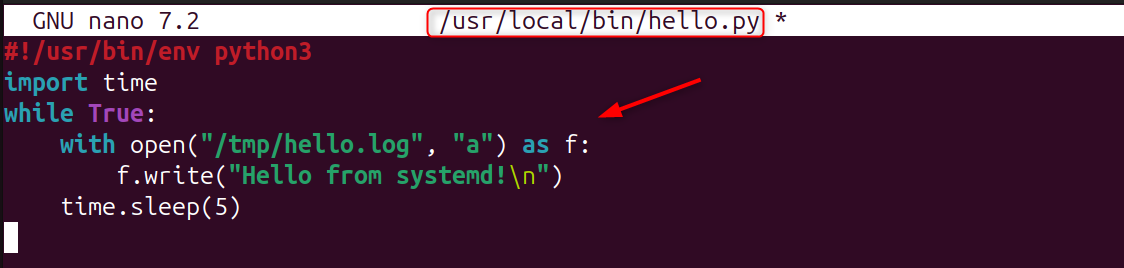
Make it executable:

Step 2: Create a systemd Service Unit File
Create a service file now:
Add:
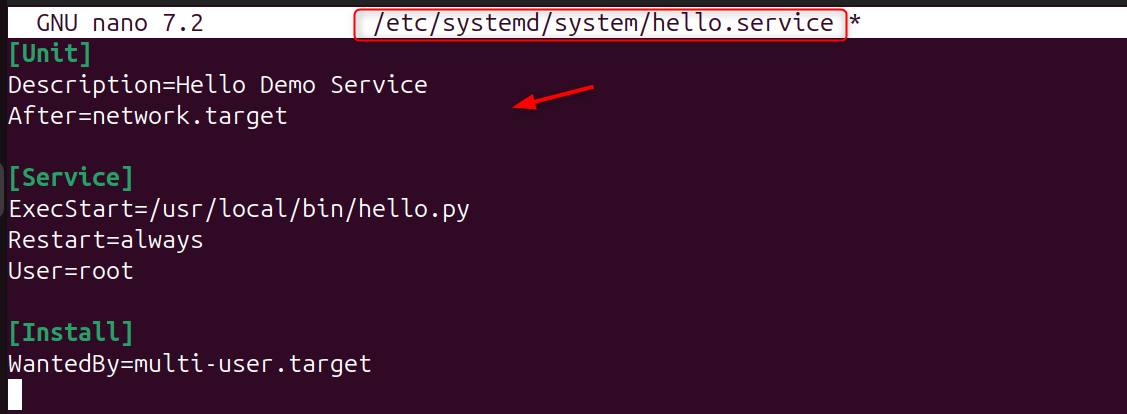
Explanation:
- Description - identifies a service
- After - ensures that service begins after the network
- ExecStart is the command that runs systemd
- Restart = always - it will restart automatically if the system crashes
- WantedBy – defines the start date of the service
Step 3: Reload systemd
Reload systemd after adding or editing a unit file:

Step 4: Start and Enable the Service
Start the service:

Enable the boot to run:

Check status:
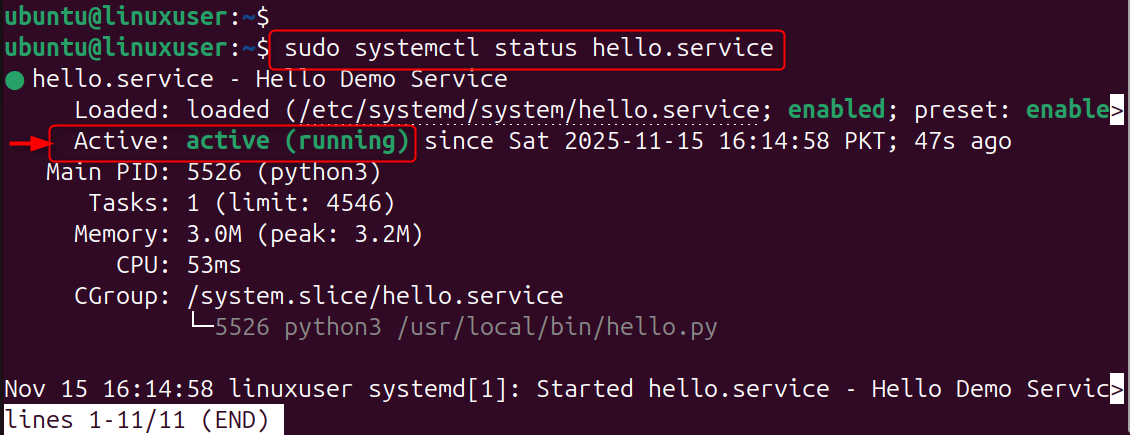
Logs and runtime information will be displayed.
Step 5: Manage the Service
Here are some of the most common commands.
Stop a service:

Restart

View logs

Disable autostart

Check if enabled

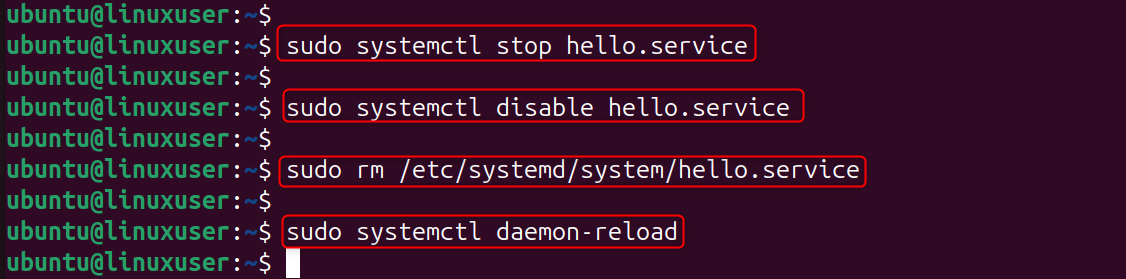
Step 6: Remove a systemd Service
To delete the service:
Conclusion
To create and manage daemons using systemd on your Linux VPS, you first write the script or application you want to run in the background, then create a service unit file under /etc/systemd/system/ that defines how the service should start, stop, restart, and run at boot.
After saving the unit file, you reload systemd with sudo systemctl daemon-reload, start the service using sudo systemctl start <service>, and enable it at boot with sudo systemctl enable <service>. You can manage it with commands like systemctl stop, restart, and status, and view logs with journalctl -u <service>. To remove the service, stop and disable it, then delete the service file and reload systemd.
Want to create and manage daemons on your Cheap VPS? Follow this step-by-step tutorial.
