
Simple automation setups will no longer suffice to guarantee reliability and performance as n8n workflows become more complex and larger. Automations running in production environments require advanced n8n technologies, such as error handling, workflow scalability, execution monitoring, and optimization. Using built-in nodes and execution settings, queues, and structured workflows, n8n is able to evolve from a simple automation tool into an automated platform that can handle real-world workloads.
This guide will walk you through the advanced concepts of n8n exactly as they appear in the user interface, so that you can easily follow along and configure nodes at each stage.
Advanced n8n: Error Handling, Scaling, Monitoring, and Workflow Optimization
This section focuses on n8n automation techniques, including logic, reliability, and performance. It also includes error handling, scaling, monitoring, and workflow optimization.
Function Node in Dashboard
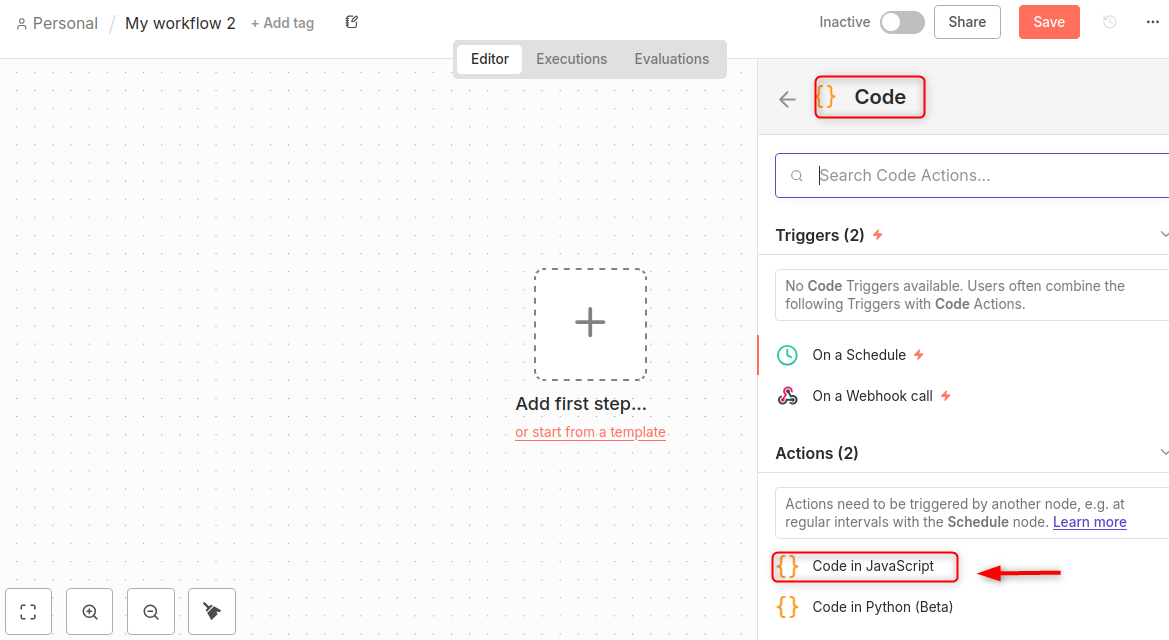
In Workflow Editor, click Code. After that, click the "Code in JavaScript" node:
Finally, paste code into the Code editor:
const results = $input.all().map(item => ({
  json: {
    name: item.json.name?.toUpperCase(),
    processedAt: new Date().toISOString(),
    executionId: $execution.id
  }
})).filter(item => item.json.name);
return results;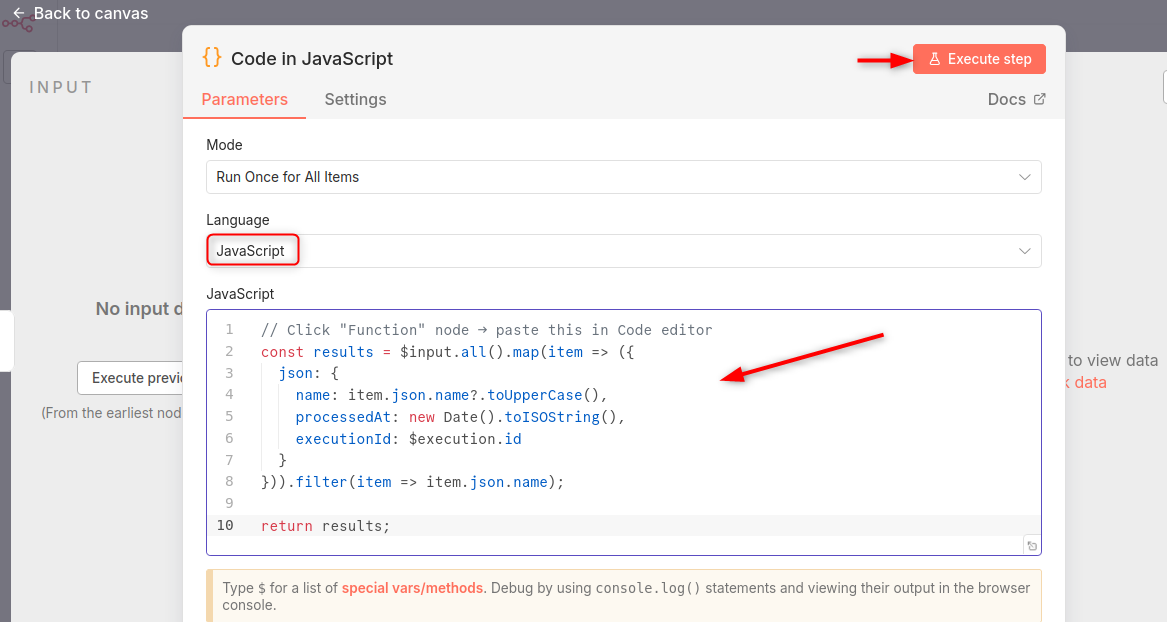
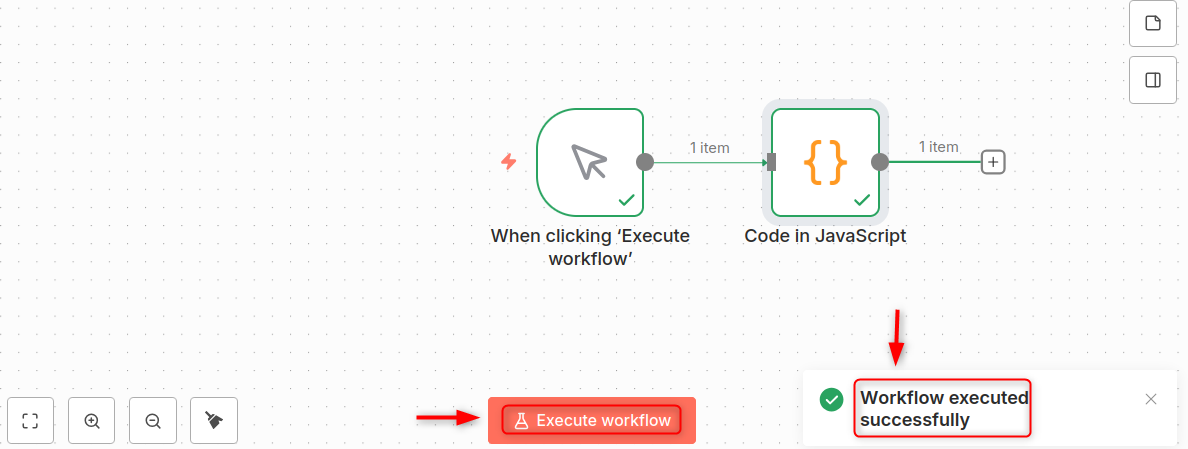
To test immediately, click the "Execute workflow" to see live output on the dashboard:
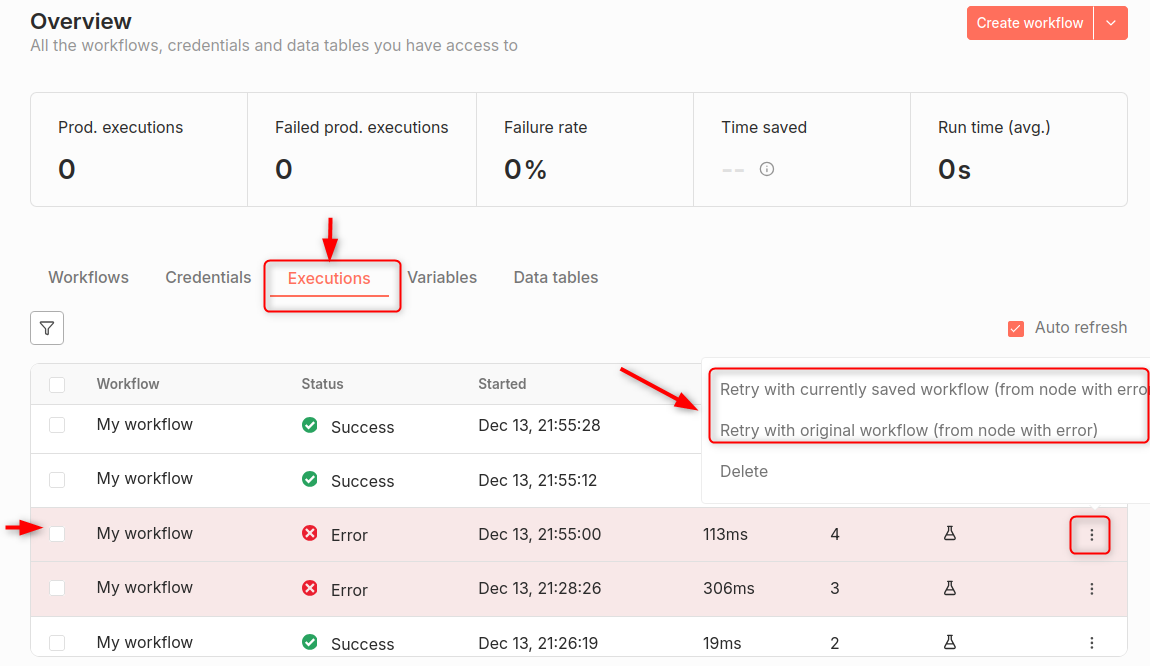
Error Handling via Executions Tab
In Dashboard navigation, click Executions tab, filter failed executions: Status = "Error". Now, select a dedicated error handler. To do so, click "Retry" if you have failed to execute the command:
Dashboard Branching & Logic
For visual debugging, run the workflow and see the green/red paths illuminate. Let’s add the "Switch node."
Switch Node Settings:
Mode: Rules
Rules:
1. {{ $json.status === "success" }} → Success path
2. {{ $json.error }} → Error path
Fallback → Manual Review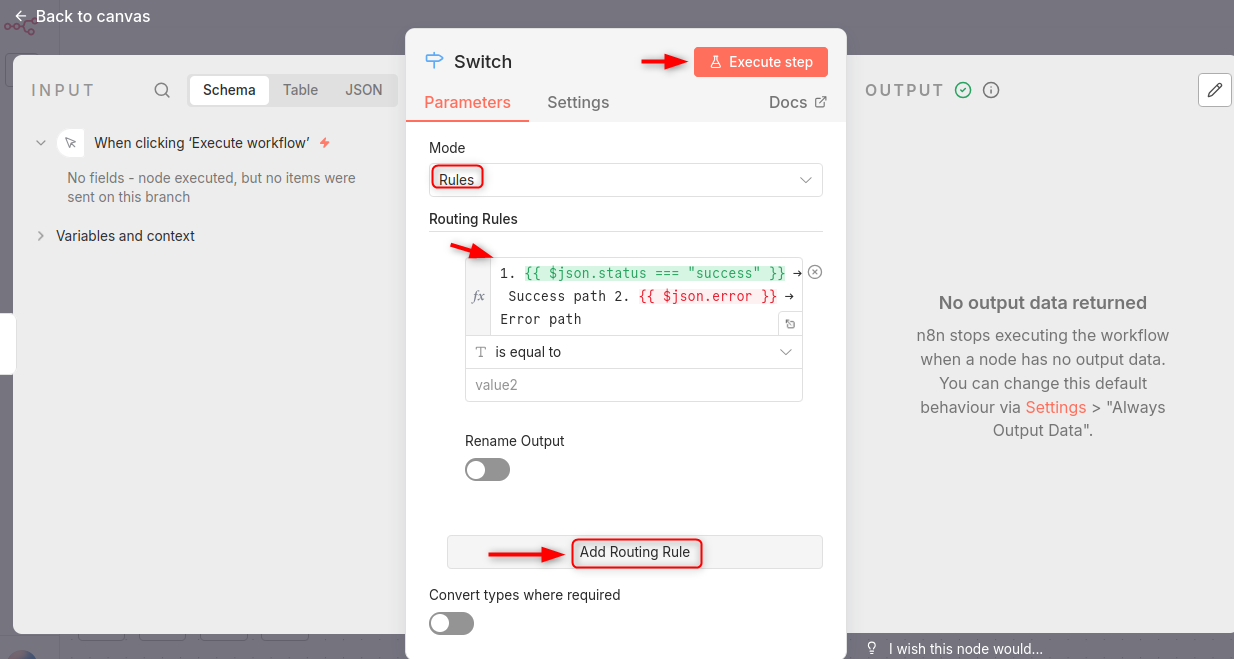
AI Nodes Configuration
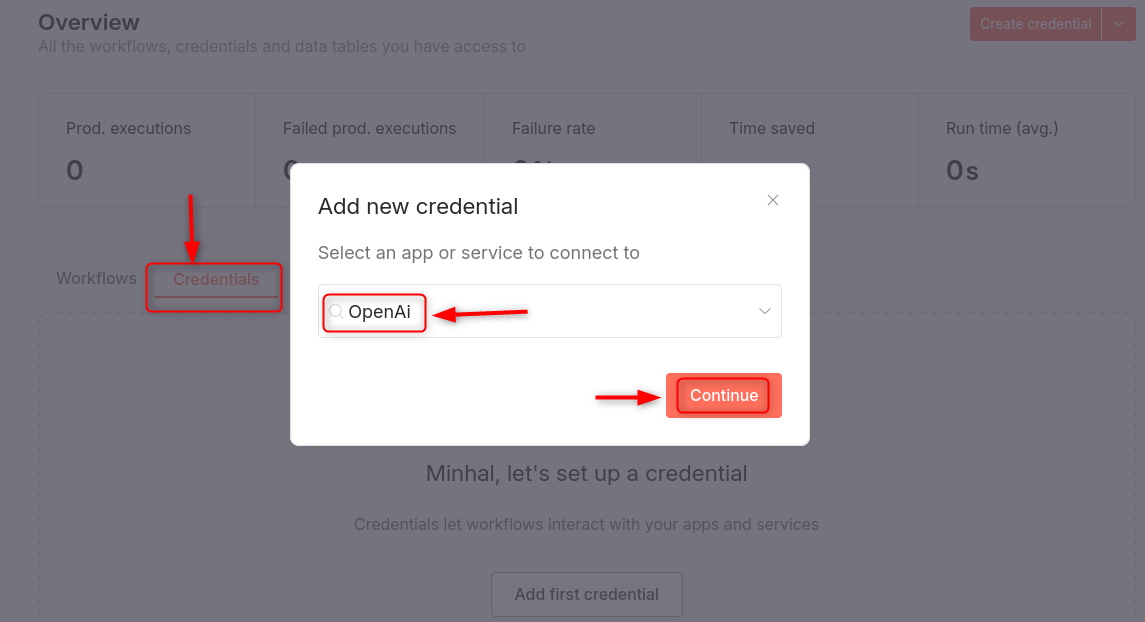
For Credentials Manager, click Credentials on the left sidebar and select OpenAI:
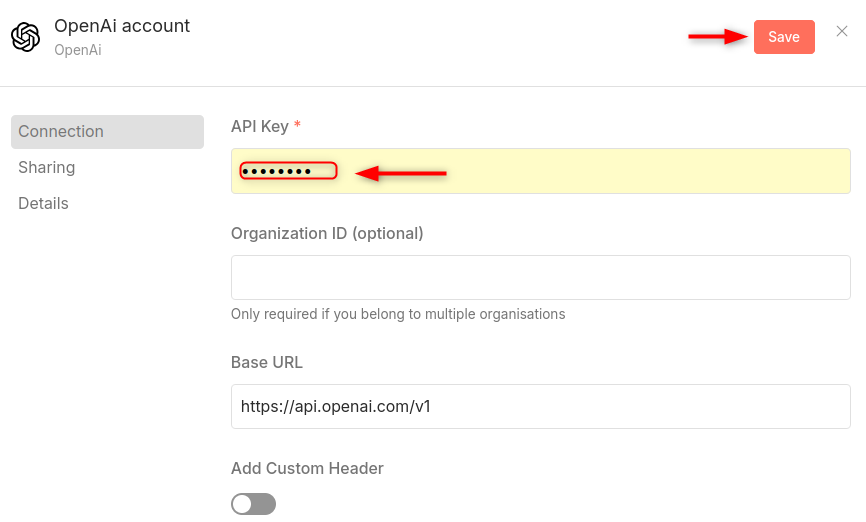
Paste your API Key and select the Chat Model:
ETL Workflows in Editor
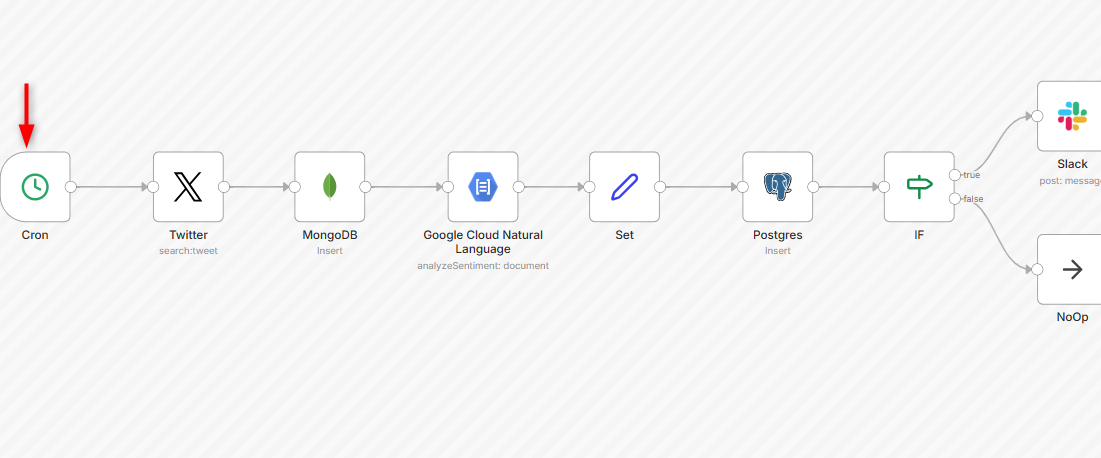
Add automatic HTTP pagination by adding "Loop Over Items”:
1. HTTP Request (Extract)
2. Function (Transform)
3. Postgres (Load) ← Drag from the Nodes panel
Database Settings Migration
For Database migration, configure settings according to the requirements:
Database → PostgreSQL
Host: localhost
Database: n8n
User: n8n
Password: yourpassword
Save → Restart n8n (button appears)
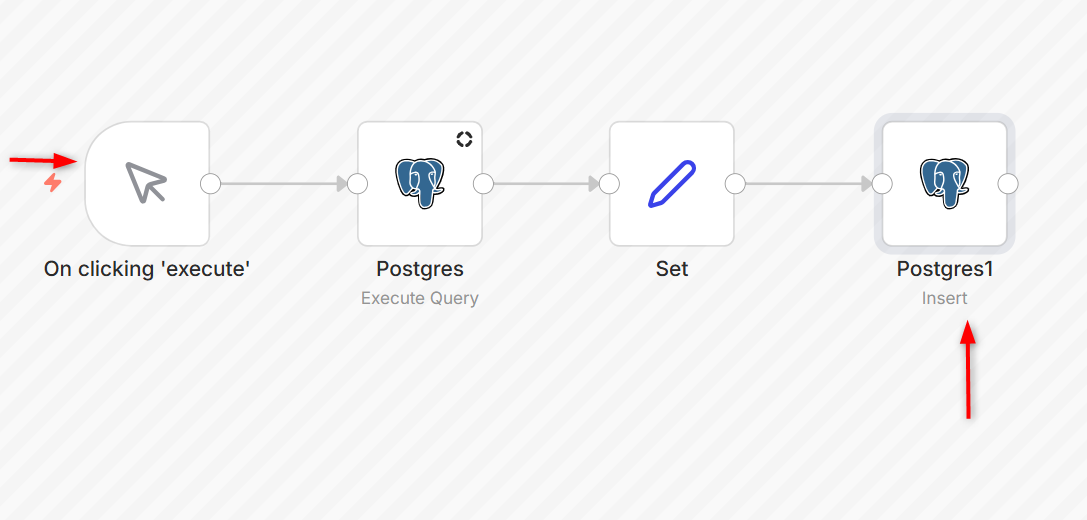
To verify, see Postgres workflow after migration:
Queue Mode Toggle
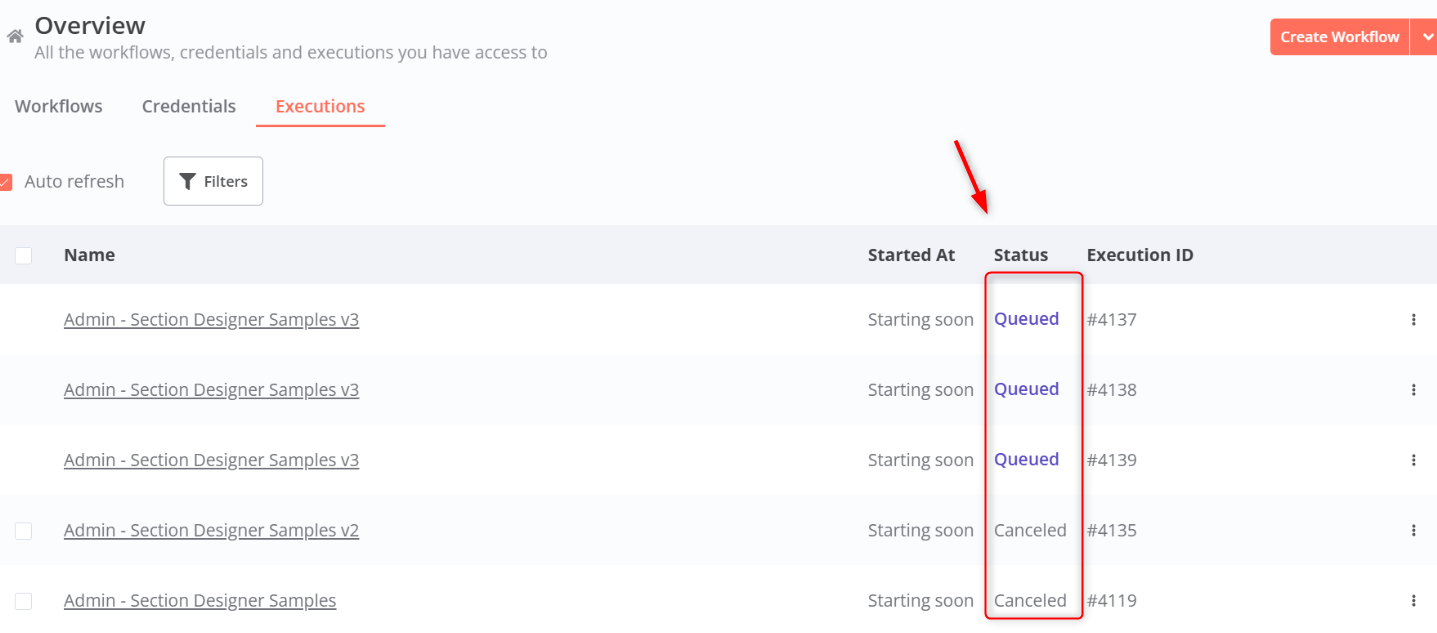
Dashboard shows Queue length, worker status, and pending jobs. Let’s check the status:
Monitoring Workflows
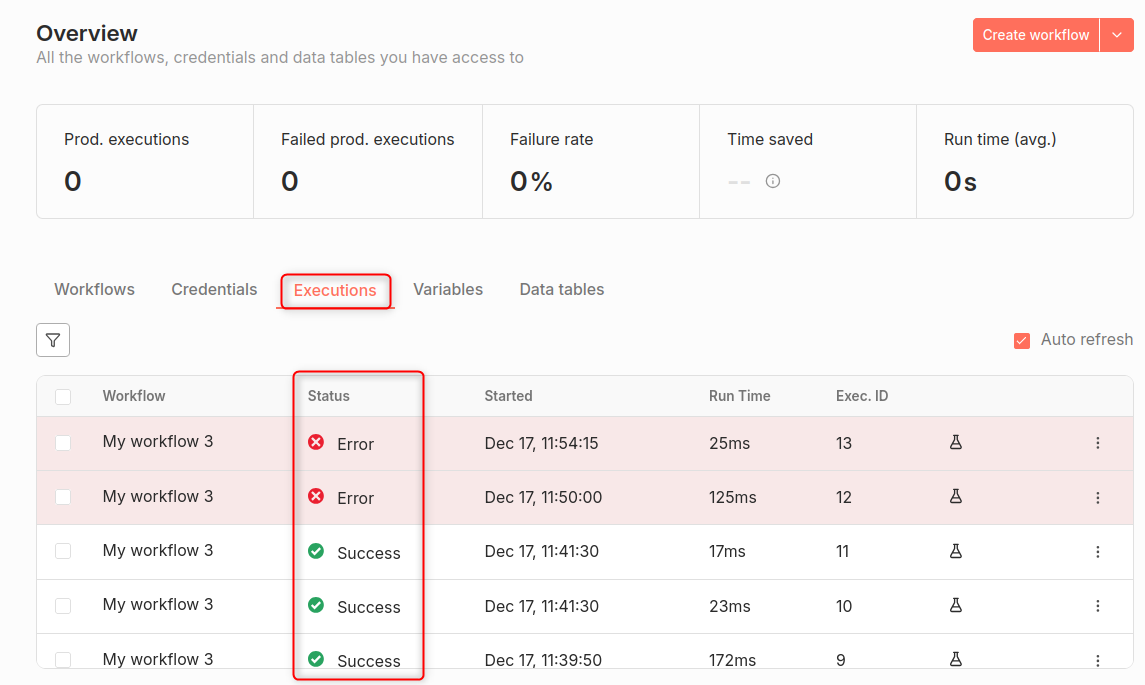
Monitoring ensures you catch failures before users do. Such as:
- Click Executions in the left sidebar
- Filter by Success / Error
- Click an execution to inspect node-by-node output
Designing Maintainable Automation Systems
Clean visual structure makes workflows easier to maintain and scale. Best practices visible in UI:
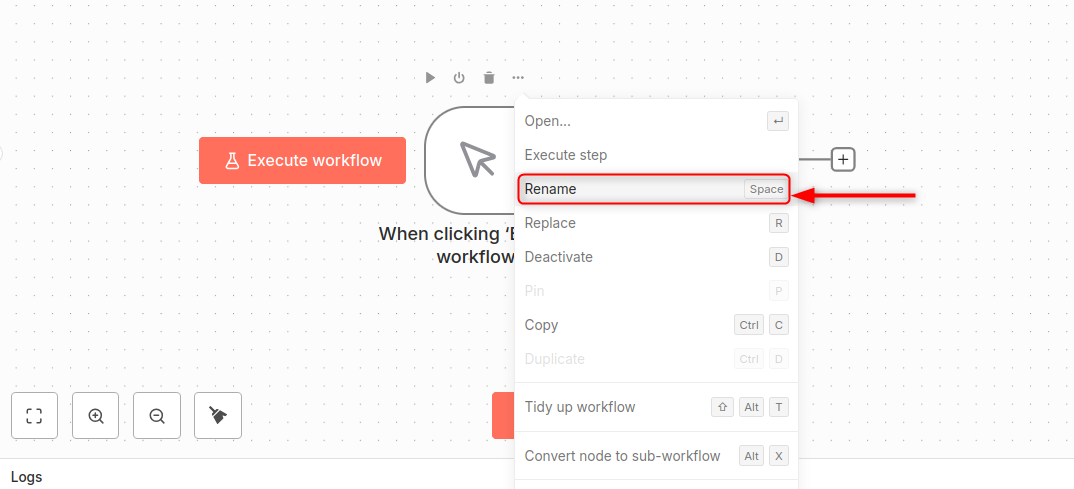
- Rename nodes clearly
- Use Sticky Notes to document logic
- Split large workflows using the Execute Workflow node
Rate Limit Visualization
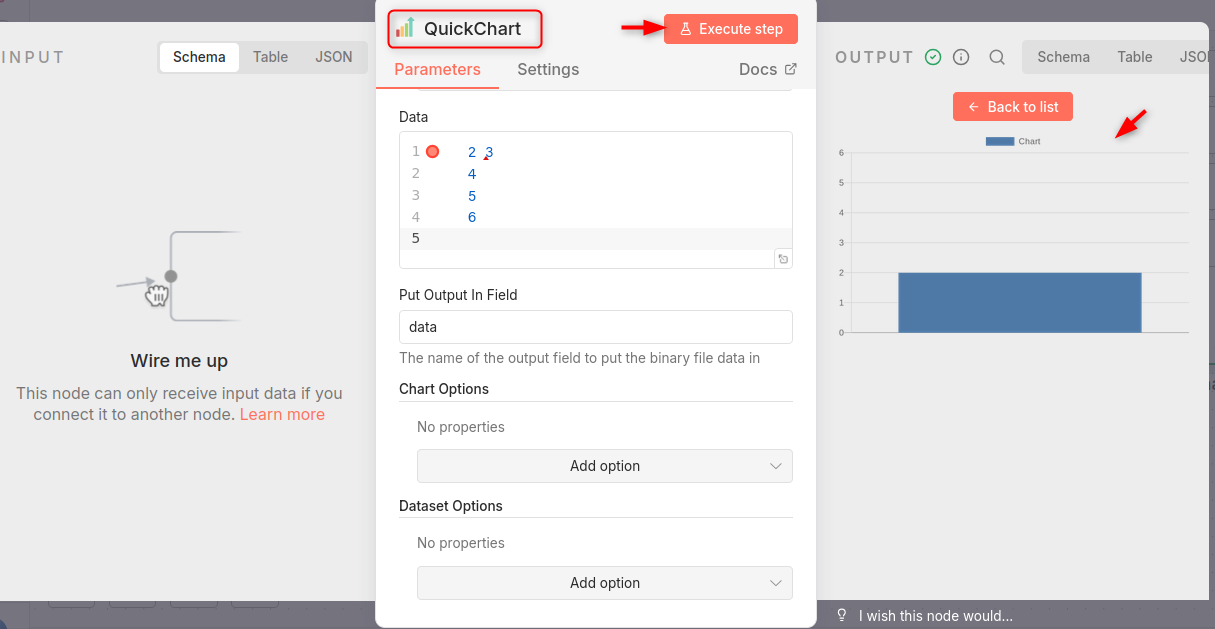
To custom monitoring workflow: add "QuickChart" node in dashboard visualization to see rate usage over time:
Versioning & GitHub Sync
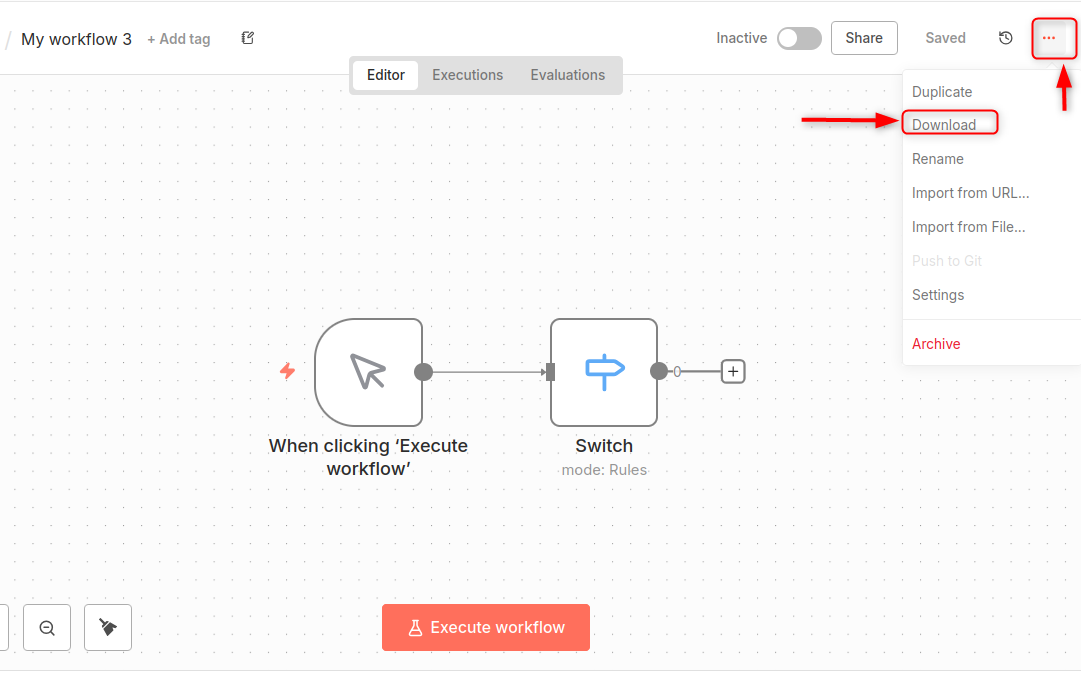
Treat workflows as code with version control and rollback support. To do so,
- Open workflow → Click ⋮ Menu
- Select Export → Download JSON
- Commit JSON files to GitHub
Central Hub Setup
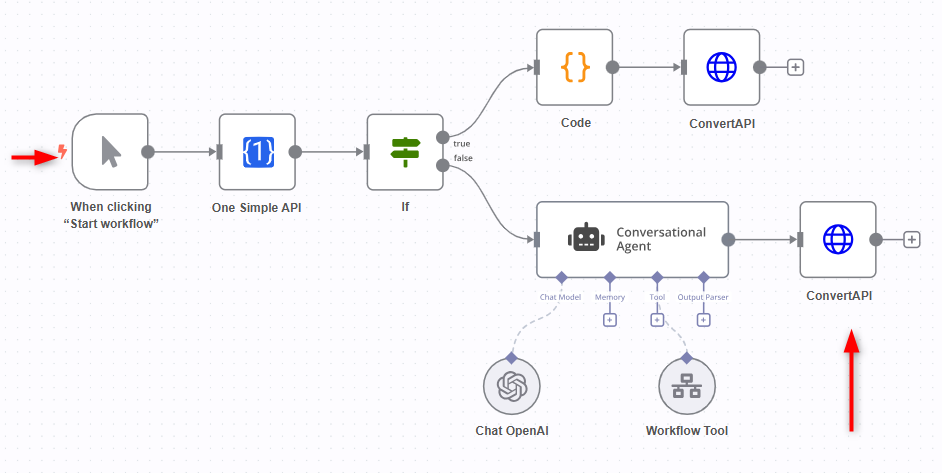
In Dashboard Webhook Central Create "Router" workflow, add 10+ Webhook triggers (different paths), and switch node routes to specialized workflows. Let’s all APIs in the Credentials tab for reuse across workflows:
Universal Advanced Workflows
By applying best practices, such as workflow moduleization, rate limit handling, version control, and centralized logs, n8n is optimized to be a production-ready hub for automation. This includes complex data processing, long-running workflows, and integrations.
1. Automatically Generate Reports Using Multiple APIs
This workflow uses a Cron trigger to collect data from multiple APIs, normalizes and merges the responses using Function nodes, and creates a consolidated report. The output can be saved in a file or sent by email.
2. Build a Personal “AI Assistant” Workflow
A webhook trigger or email trigger can send text to an AI node, which will then summarise, classify, or make a decision. The workflow takes actions based on the AI response. This includes creating tasks, sending responses, or automatically triggering follow-up automations.
3. Auto-Processing CSV or JSON Files
The workflow will validate the file structure and clean the data with transformation nodes when a file has been uploaded or received by webhook. It will then insert the processed records into a spreadsheet or database. It is perfect for automating batch processing and data imports.
4. Image Processing Automations
The workflow resizes, converts formats, or optimizes files by using external APIs or processing nodes. The images are automatically uploaded to cloud storage platforms, websites, or content platforms.
5. Webhook → Transformation → Output to Multiple Services
A webhook is a single entry point that receives data, converts it to a standard format, and sends the output simultaneously to multiple destinations. This pattern can be used to sync data between CRMs, databases, and notifications, as well as third-party systems.
That is all from the guide.
Conclusion
The advanced n8n uses a combination of conditional logic, retries, and monitoring to build reliable and scalable automated systems. The use of Function and IF Nodes to make dynamic decisions, enabling error workflows for graceful failure handling, scaling executions through databases and queues, and monitoring runs via execution logs or alerts are all part of this.
To get the best performance and reliability from your automation setup, consider using AlphaVPS’s High-Performance VPS solutions tailored for automation and integration workloads. With the right infrastructure, your n8n workflows can scale seamlessly as your business grows.
