Sending VPS logs to a remote syslog server is a smart and secure way to centralize log management. It helps you monitor system activity, detect anomalies faster, and maintain consistent backups: all while reducing the risk of losing valuable data if your VPS fails. By configuring your syslog client (such as rsyslog or syslog-ng) to forward logs to a remote destination, you create a more scalable and manageable logging infrastructure.
In this guide, we will explore how to send VPS logs to a remote syslog server.
How to Send VPS Logs to a Remote Syslog Server (Step-by-Step)
Centralized logging lets you see trends, respond to incidents more quickly, and avoid having logs on a single-compromised VPS. TCP + TLS (RFC5425, replicate on port 6514) or RELP over plain UDP might be preferred in networked environments to prevent message loss and eavesdropping.
Quick checklist
- A VPS (Client) and a central log server (Compatible with both Debian/Ubuntu).
- rsyslog is on both machines (sudo apt install rsyslog).
- Root/sudo and firewall ports are able to be opened (514/6514).
Step 1: Prepare Your Syslog Server Environment
Choose UDP (fast and lossy communication), TCP (reliable delivery), or TCP+TLS (secure, recommended for Internet use). Use port 6514 for TLS syslog. If you need delivery with confirmation, use RELP/omrelp. Rsyslog docs also recommend TCP+TLS for modern setups.
Step 2: Install rsyslog (client + server)
rsyslog is a standard, powerful syslog daemon that's used on all modern Debian-like systems, and it does support UDP, TCP, TLS with queueing.
On both machines:
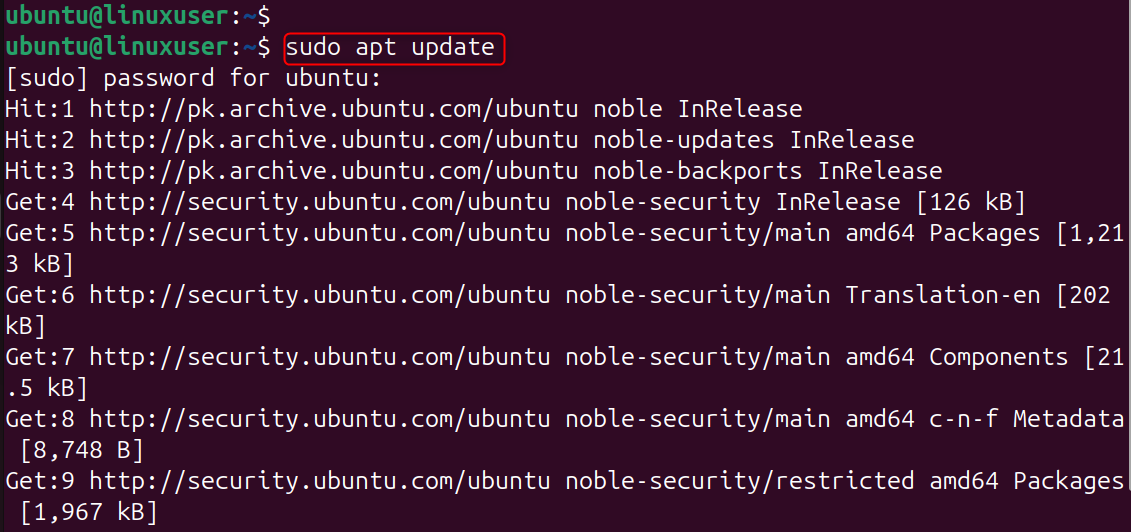
Update system repositories:
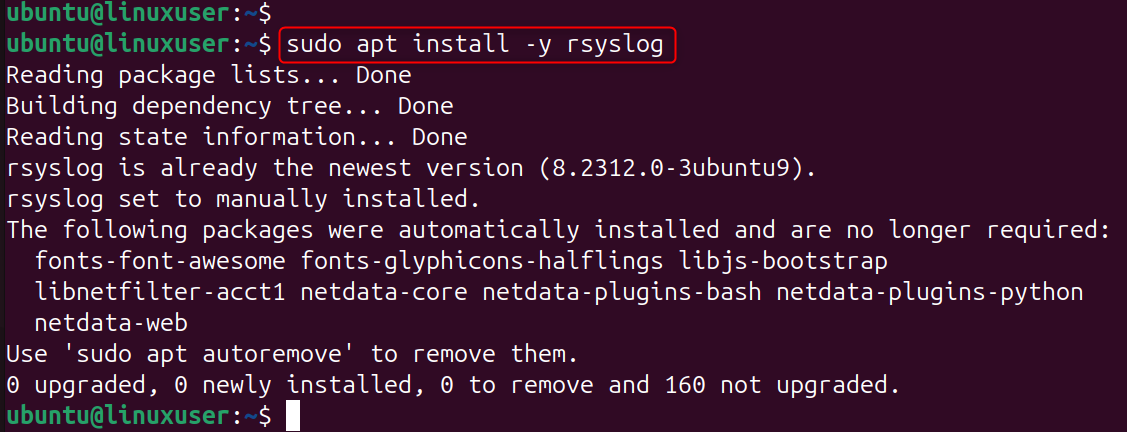
Now, install rsyslog on the system:
After that, enable the services of rsyslog:

Step 3: Make systemd journal forward to syslog
If your VPS uses systemd (most new Debian/Ubuntu), make sure the journal forwards messages to rsyslog, so service logs show up in the syslog stream:
Edit /etc/systemd/journald. conf and set:
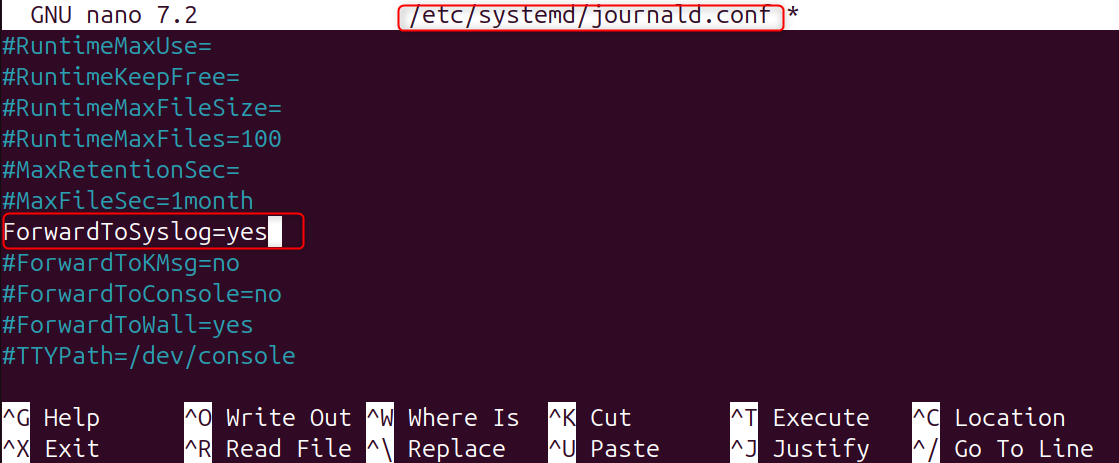
systemd-journald is able to forward to a local syslogd: here's how you enable that so the unit logs (the journal) will be forwarded through rsyslog.
Restart journald:
Step 4: Configure the rsyslog client (VPS) to forward logs
Configuring the rsyslog client (VPS) to Forward Logs. On our VPS, configure the rsyslog service for forwarding log data.

A. Quick (legacy) one-line (works, but limited): Add to /etc/rsyslog.d/50-forward.conf:
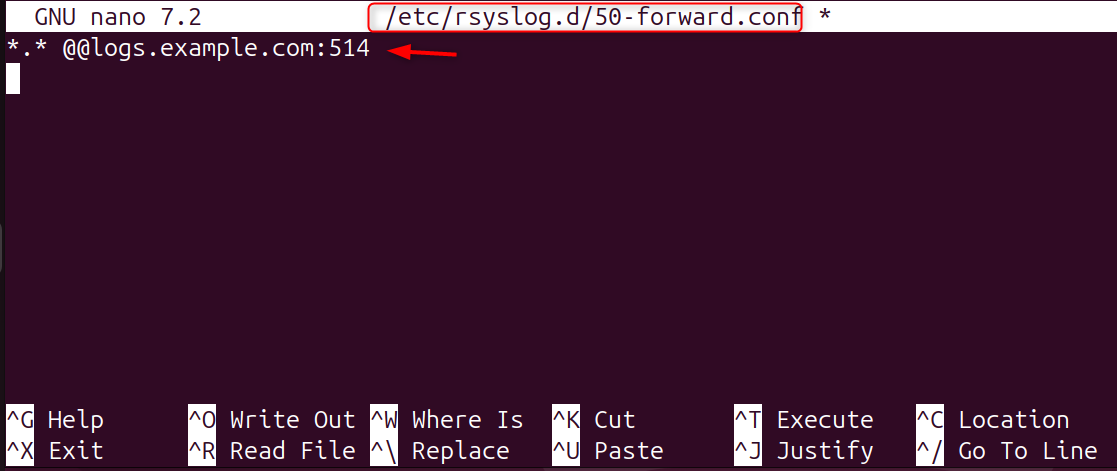
@@ stands for “send (using TCP)”; @ is sent using UDP. Here’s a fast one, but it doesn’t include modern queueing and TLS settings.
B. Recommended modern RainerScript (TCP with queue):Send all logs remotely over TCP with a disk-assisted queue. Create /etc/rsyslog.d/90-forward.conf:
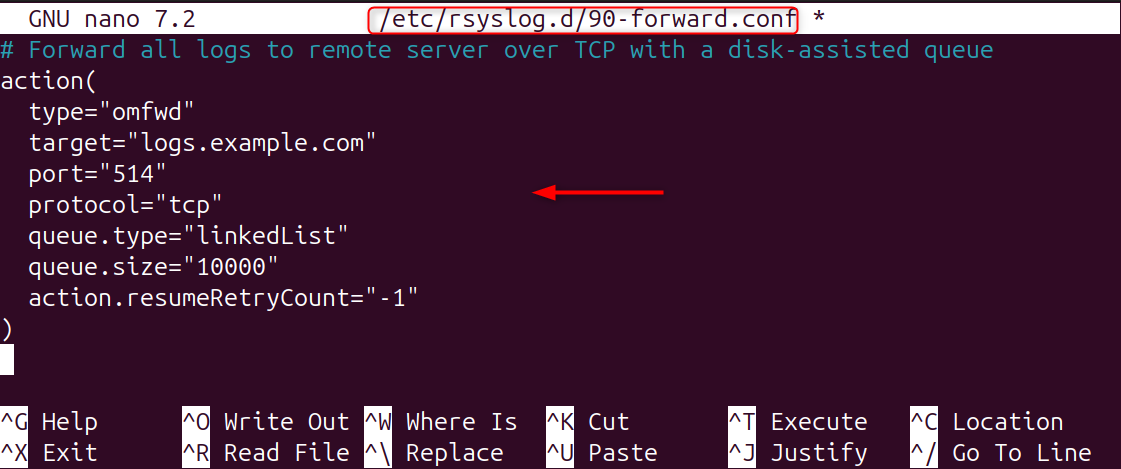
The most recent action(type="omfwd"...) is explicit and allows you to use queues so as not to lose or block logs if the server goes down. Always use queues for production.
C. Recommended secure (TLS) example: best practice for public VPS:
Create /etc/rsyslog. d/91-forward-tls.conf (modify to match your cert paths/names):
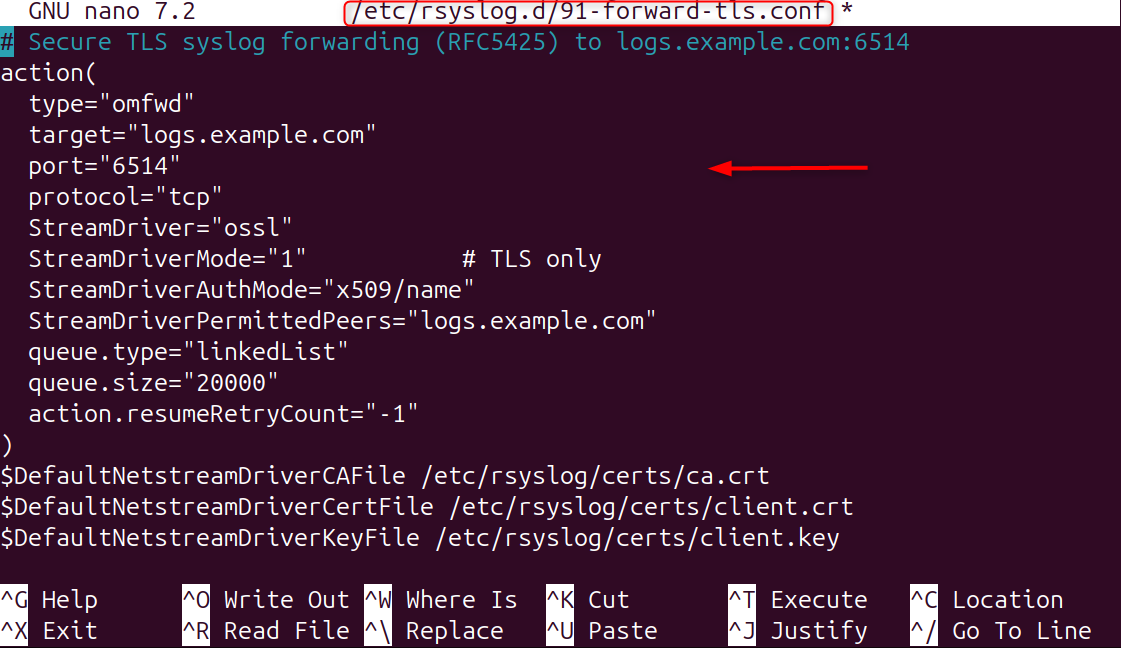
This will use TLS with the rsyslog stream driver (which uses OpenSSL). Put them under /etc/rsyslog/certs/ and secure the perms. TLS avoids eavesdropping and provides peer authentication.
You can test the config and restart rsyslog now once you are done editing:

Now, restart rsyslog once you are done editing:

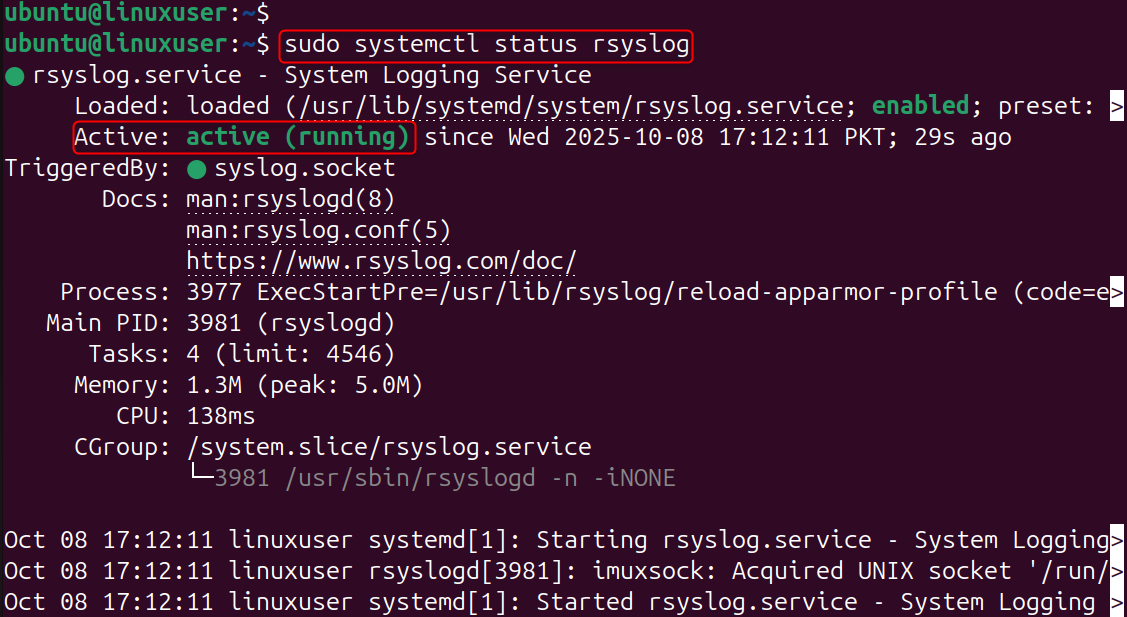
Finally, check the services that are active:
Step 5: Setting up the rsyslog server (receive & store)
Edit /etc/rsyslog. conf (or add /etc/rsyslog. d/10-receive. conf):
UDP + TCP input (example):
If you use TLS at the server, you'll configure imtcp using a stream driver and server certs (rsyslog doc has the exact TLS-server options).
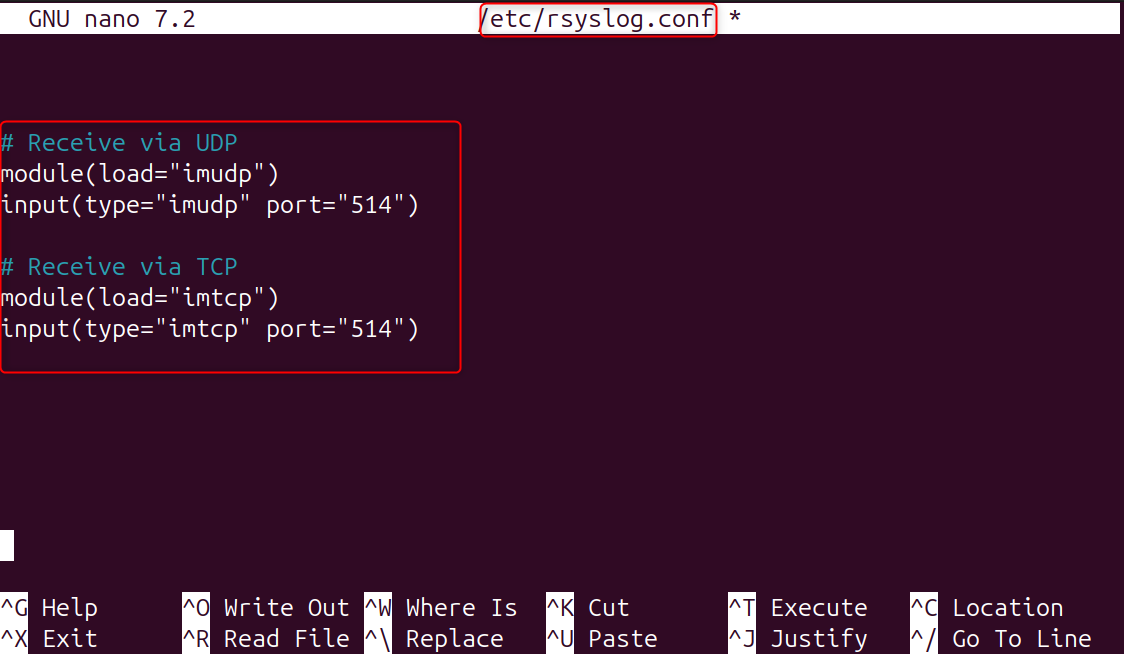
The issue is that to receive network syslog messages, the server needs to have imudp/imtcp enabled. Use $AllowedSender to limit sources and use a template to separate out per-client stuff. Restart rsyslog after changes.
Step 6: Open firewall ports (server & client)
If you have an installed firewall on the server, you will need to open the following additional ports:
On the server (example using UFW):

If using TLS (6514):
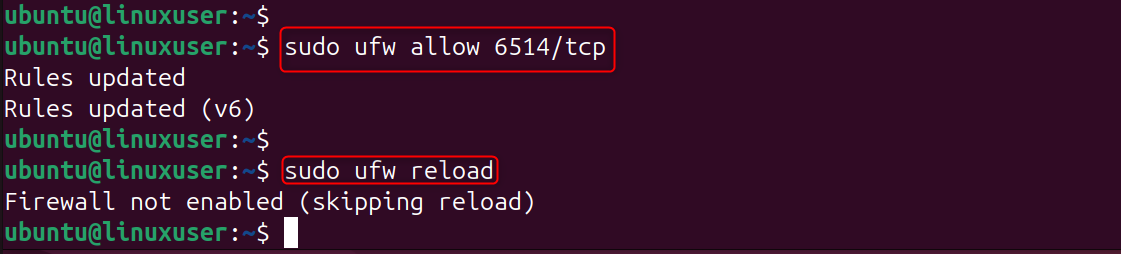
You'll need to allow traffic out from the client to the server/port. Explanation: You don't get logs unless you have the ports open; prefer to lock down access (e.g., via firewall rules or VPN, or private networking).
Step 7: Test end-to-end
logger is used here to send a syslog (message) only locally (logger will not inject the message into other components of your system), it will be visible in any log files on the server where forwarding and reception have been set up correctly.
On the VPS (client):

On the server:

That is all from the guide.
Conclusion
Whether you’re managing a single VPS or a fleet of servers, implementing remote logging improves visibility, simplifies troubleshooting, and strengthens your overall security posture. Once your setup is running smoothly, consider adding log rotation, encryption (like TLS), and monitoring tools to ensure your logging system remains reliable and efficient over time.
Need reliable space for long-retention centralized logs? Our Storage VPS gives you RAID-protected disks and solid network throughput — ideal for remote syslog hubs.
👉 https://alphavps.com/storage-vps.html
