A slow VPS boot can adversely affect server performance, delay necessary applications, and cost you valuable uptime. If your server is too slow to boot, your users will experience delayed reactivity, and scheduled tasks may not be triggered. For businesses hosting websites, APIs, or production service, a slow boot means downtime, which equals loss of revenue.
The good news is that Linux provides tools to measure and fix this. The best option is the built-in utility called systemd-analyze (and you get to it via the command line). This program helps diagnose issues with server startup by showing you where your VPS is spending time booting. This utility will also make identifying the source of problematic performance, bottlenecks etc., much easier.
In this guide, we'll review how to use systemd-analyze to optimize your VPS boot time, step-by-step. This will lead to faster reboots, better Linux boot performance, and better uptime. You'll eliminate other unnecessary delays and identify slow services to improve your server performance throughout its entire run.
What is systemd-analyze?
systemd-analyze is a command-line tool that shows how long each step of the Linux boot process took. It measures the time it takes to start firmware, kernel, and user space, and allows you to observe which services slow down the system. This makes it a useful tool for users experiencing a slow boot on a VPS.
Unlike some generic performance tracking tools, systemd-analyze is only concerned about boot performance. You can measure the total boot time until your server becomes available or list services based on how long it takes to load. Its focused nature makes it simple to figure out what is causing server boot delays.
VPS users can now troubleshoot boot problems faster without a lot of guesswork. Whether you are managing a production set of servers, or just a simple one-off development VPS, it can effectively give you insight about how to fix and/or improve performance of the Linux boot processing.
Checking VPS Boot Time
The first step is to measure how long your VPS takes to start. Open your terminal and run:

This command shows the total boot time broken down into three parts: firmware, kernel, and userspace. Firmware time is the hardware initialization done by your VPS host. Kernel time is when the Linux kernel loads, and userspace time is when all services and processes start.
Compare the numbers to see where most of the time is being spent. For example, if userspace takes much longer than the other two, slow services are likely the cause. This gives you a clear starting point before you move on to finding which services are delaying your VPS boot.
Identifying Slow Services with systemd-analyze blame
Once you know your total boot time, the next step is to find out which services are slowing things down. In your terminal, run:
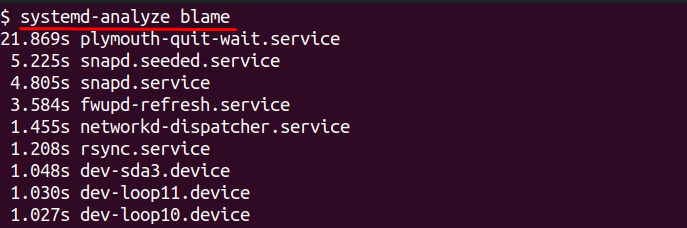
This will display a list of all running services, sorted by how long they took to start — the slowest ones appear at the top.
Focus on the services taking the most time. Anything with several seconds of startup time is worth checking. If you recognize a service that you do not need on your VPS, you can plan to disable it later.
This simple step removes the guesswork and shows exactly where your VPS boot process is getting delayed, saving time and effort during troubleshooting.
Understanding Dependencies with systemd-analyze critical-chain
Knowing which services are slow is helpful, but sometimes a fast service still delays boot because it is waiting for another service to finish. To see these relationships, run:
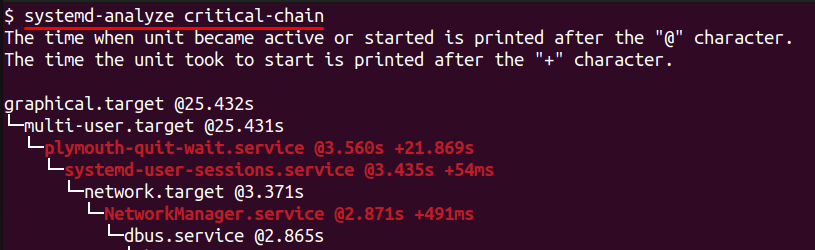
This command shows a dependency chain — basically a timeline of which service started first, which ones waited, and how long each step took. The output is shown as a tree with timestamps, so you can clearly see which service is causing delays for others.
For example, you might notice that a web server service did not start until the network service finished. If the network service is slow, everything that depends on it is delayed. This view helps you identify the root cause instead of just disabling random services.
Look carefully at the services near the bottom of the chain that take the most time. These are usually the real bottlenecks. Fixing or optimizing them will give you the biggest improvement in VPS boot speed.
Disabling or Masking Unnecessary Services
After you know which services are taking time during boot, the next step is to stop the ones you do not need. This is where you can make the biggest improvement.
To disable a service so it does not start on the next boot, use:
If you want to completely block it from being started manually or by another service, use masking:
On most VPS servers, some services are safe to disable. Examples include:
- bluetooth.service – VPS machines do not use Bluetooth.
- ModemManager.service – not needed unless you use a modem connection.
- cups.service – printing service, usually unnecessary on servers.
- avahi-daemon.service – network discovery service, not required for most VPS setups.
Be careful not to disable critical services like networking, SSH, or system logging. A good practice is to disable one service at a time and reboot to confirm the server is working normally. This way you can safely optimize startup without breaking functionality.
Document every change you make. If something goes wrong, you can enable the service again:
Disabling unneeded services reduces userspace boot time and makes your VPS start faster and more reliably.
While optimizing boot time is essential, it’s equally important to run on a platform that’s fast and well-tuned from the start. At AlphaVPS, our VPS plans are built on high-performance NVMe storage and modern CPU platforms, ensuring consistently fast boot times and responsive performance. Whether you’re running production workloads or fine-tuning startup speed, AlphaVPS gives you the reliable foundation your optimizations deserve.
Reboot and Compare Results
Once you have disabled or optimized unnecessary services, reboot your VPS to check if the changes made any difference. Run:
After the server comes back online, log in and use:
Compare the new boot time with the one you noted earlier. If the userspace time is lower, your optimization works. You can also run:
Always test carefully after every set of changes. If something is broken, re-enable the service you disabled and reboot again. This habit ensures your VPS remains stable while still improving boot speed. Documenting the before-and-after results helps track progress and makes future troubleshooting easier.
Conclusion
In this post we discussed how to diagnose and remedy slow VPS boot times using systemd-analyze. You learned how to analyze total boot time, separate boot time into firmware / kernel / userspace times, and discover which services are responsible for slowness. You also learned about the critical-chain view that shows service dependencies so that you could pin point the root cause of a bottleneck instead of continually guessing.
You can speed up your VPS boot time and make it more reliable by disabling or masking unnecessary services, testing your VPS after each change, and comparing results to systemd-analyze. Additionally, performing a check on your boot time will keep your VPS legalized, minimize your downtime upon rebooting the VPS, and ensure critical applications are available when required.
