Issues related to a network interface on a VPS can disrupt critical workflows, block SSH access, slow your applications down, or cause your site to go offline. A simple mistake with a configuration or network interface can cause downtime, which may result in lost traffic, revenue, or customer trust. Quick identification of the problem is key to restoring services before users are aware that an outage is taking place.
A VPS is located on a physical server that is shared by other VPS instances but it functions like its own machine. Since the VPS makes use of virtualized hardware, the network interfaces, such as eth0 or ens33 can fail to initialize following a reboot, OS update, or change in configuration. This can lead to VPS connectivity problems, dropped packets, or a complete lack of network interfaces on the VPS.
If you’re currently running on an unreliable or oversold VPS, network interface problems can become far more frequent. At AlphaVPS, our Cheap VPS plans deliver dedicated resources, fast networking, and full virtualization, so you can count on consistent performance and stable connectivity — even after reboots or updates.
This article will take you through steps to help pinpoint and remediate common VPS-related network issues. You will learn how to check the status of an interface, fix a broken configuration, test network connectivity, restart services, and apply changes that may reduce the likelihood of future outages.
Understanding Network Interface Problems
A network interface is the virtual connection between your VPS and the Internet responsible for routing all incoming and outgoing packets through allocated IP addresses and gateways. If this interface goes down or does not configure properly, the VPS loses connectivity and becomes unreachable.
Common symptoms exhibiting a failure can include no response from ping, unable to SSH into the device, no public IP shown on ip addr, or slow connections. Some users also see these symptoms as connection drops or high packet loss that makes the services unusable. They impact websites, APIs, and background processes that rely on an unrealized network.
Common Causes of VPS Network Interface Issues
The primary cause of lost of connectivity with a VPS is either network settings that are improperly configured, for example an incorrect IP address, gateway, subnet mask, etc, causing the server to not route traffic correctly, or a DNS entry that is missing or hasn't been updated, and no domain look-ups will work even if the interface shows that it is active.
Another one is that the interface didn't start when the server rebooted. This often happens if there's an error in configuration files such as /etc/network/interfaces or netplan YAML files are not set to start on boot. Kernel updates and glitches from drivers or missing drivers can also break the virtual network adapter, and you simply don't have an actual interface.
In addition to what has been mentioned, firmware misconfiguration, such as strict iptables or firewalld rules will also deny traffic. What this can also mean is simply node issues from VPS providers or network outages on the host level negatively affecting all VM's on that host. If you are aware of the underlying cause, you won’t waste time applying fixes for issues that wouldn't resolve the issue.
Launch and scale on proven VPS & dedicated infrastructure.
AlphaVPS delivers fast KVM VPS, powerful Ryzen and EPYC compute instances, high-capacity Storage VPS, and reliable dedicated servers — all engineered for performance and uptime.
Ready to deploy?
Explore our plans or get started instantly.
Explore AlphaVPS ↗Step-by-Step Troubleshooting Guide
Step 1: Access VPS Console
If SSH is not responding, the first step is to get direct access to your VPS. Most providers offer a built-in web console or rescue mode through their control panel (SolusVM, Proxmox, VirtFusion, etc.). Use that to log in even if the network is broken. Once inside, run:
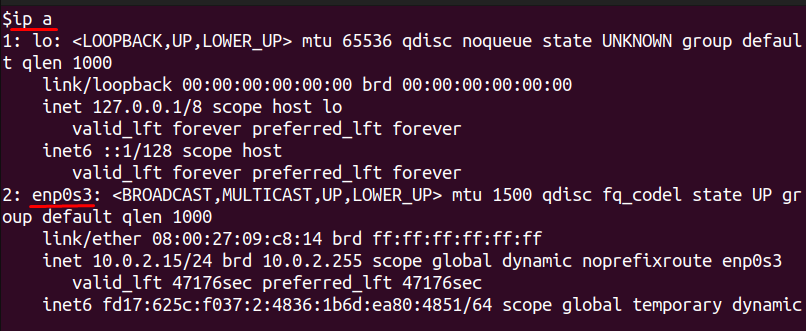
This command will list all network interfaces and their status. If you don’t see your main interface or it shows DOWN, that’s your first clue.
Step 2: Verify Interface Status
Your network interface must be active before it can handle traffic. To bring it online manually, run:

Replace eth0 with your actual interface name if it’s different (e.g., ens33). Run ip a again and check that it now says state UP. If it’s still down, there may be a deeper configuration issue.
Step 3: Check IP Configuration
Even if the interface is up, it won’t work without an IP address. Check its current IP with:
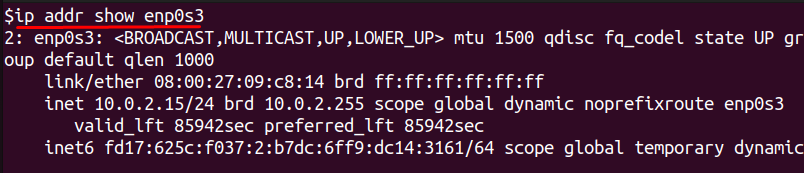
If no address appears, assign one manually:
Use the exact IP address and gateway provided by your VPS host. This step often restores connectivity instantly if the issue was just a missing IP.
Step 4: Test Connectivity
Once the interface has an IP, check if you can reach the outside world:
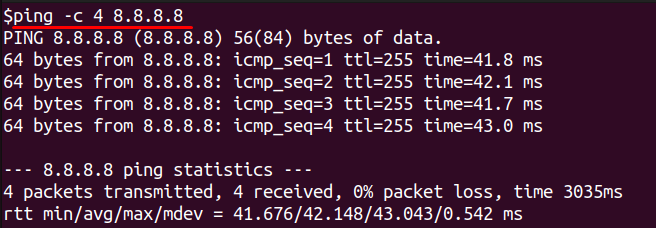
If the ping succeeds but you still cannot resolve domains, the problem is DNS. Open /etc/resolv.conf and add:
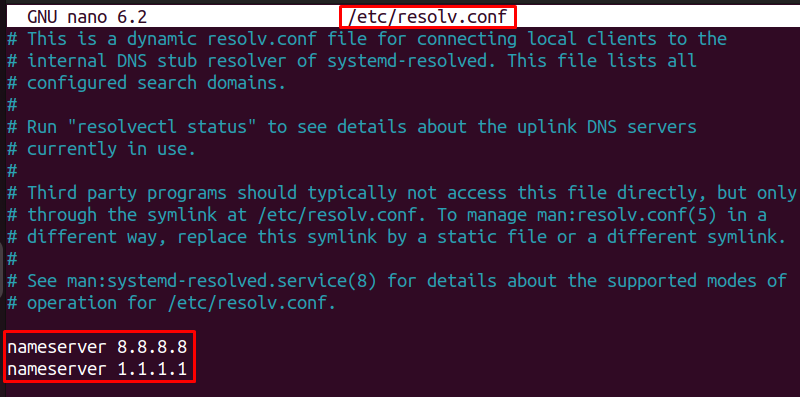
Save the file and try again:
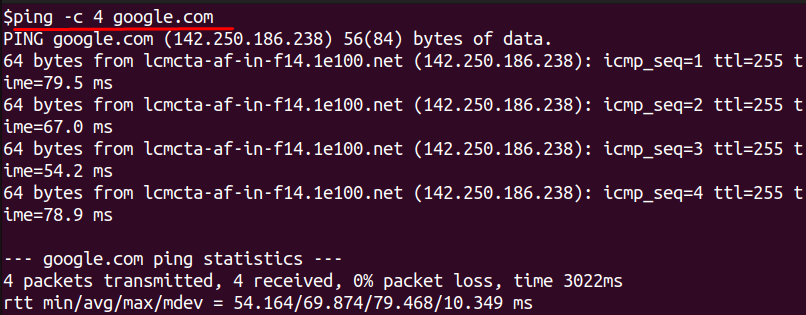
This confirms whether name resolution is working.
Step 5: Review Firewall Rules
Sometimes the network is fine but your firewall is blocking traffic. Check the current rules with:
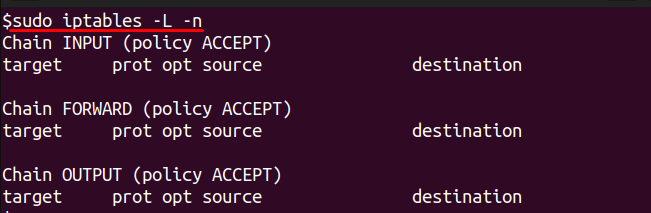
or for firewalld users:
If you suspect the firewall is blocking access, stop it temporarily:
Then test again. If connectivity returns, you’ll need to adjust your firewall rules properly.
Conclusion
In this article, you learned how to identify and troubleshoot network interface issues that could cause VPS downtime, sluggish performance or network connectivity loss. Checking interface status, verifying the IP assigned is correct, testing connectivity and reviewing firewall rules are all basic checklist items that allow you to get a server back online quickly without more guesswork.
Interventions to reduce future issues are just as important as the original issue you just resolved. Keep network configurations files backed up, verify interfaces are set to auto-start after reboots, and continually monitor uptime. These steps help reduce the chance of another sudden outage, and save time on an outage. With a good process in place, you can maintain a stable and reliable VPS network so that your services are available to users at all times.
