Encrypting data in transit is an important step for cloud servers. Ubuntu 24.04 offers LUKS disk-based encryption as a standard method to protect sensitive files, databases, and backups. Whether you host web applications on a VPS or store confidential data, LUKS will ensure that your data is unreadable if the server is compromised, stolen, or accessed by unauthorized users. LUKS implementation is a critical part of any Linux security. Maintaining proper key management will ensure long-term security for your most important workloads.
This guide will show you how to install LUKS onto Ubuntu 24.04 virtual private server, create an encrypted storage volume, manage passphrases, and mount encrypted data securely.
Why Use LUKS for Data-at-Rest Encryption?
LUKS has gained a lot of trust because:
- The Linux kernel includes AES encryption for maximum security
- Multiple passphrase slots for secure key management
- Protect your data from theft, snapshots of VPSs, and offline attacks
- Compatible with cloud VPS providers and RAID setups, as well as systemd
This ensures that your data will remain unreadable even if someone were to gain access to the raw disc. Before you begin:
- Ubuntu 24.04 VPS
- Root or sudo access
- A secondary disk or partition is recommended for VPS setups.
If your cloud VPS provider does not support encrypted boot, you should not encrypt the root filesystem.
How to Encrypt Data at Rest on Your Ubuntu 24.04 VPS with LUKS
To encrypt data at rest on Ubuntu 24.04 using LUKS, install cryptsetup, identify your target disk, and initialize it with cryptsetup luksFormat. You can then unlock the device using cryptsetup, format it with a filesystem, and mount it securely to store encrypted data. You can configure /etc/crypttab to mount and unlock volumes automatically or manually. LUKS manages strong AES encryption keys and ensures that all data on the disk is protected, even if a VPS is compromised.
Step 1: Install Required Packages
Install the cryptsetup packages that provide LUKS.
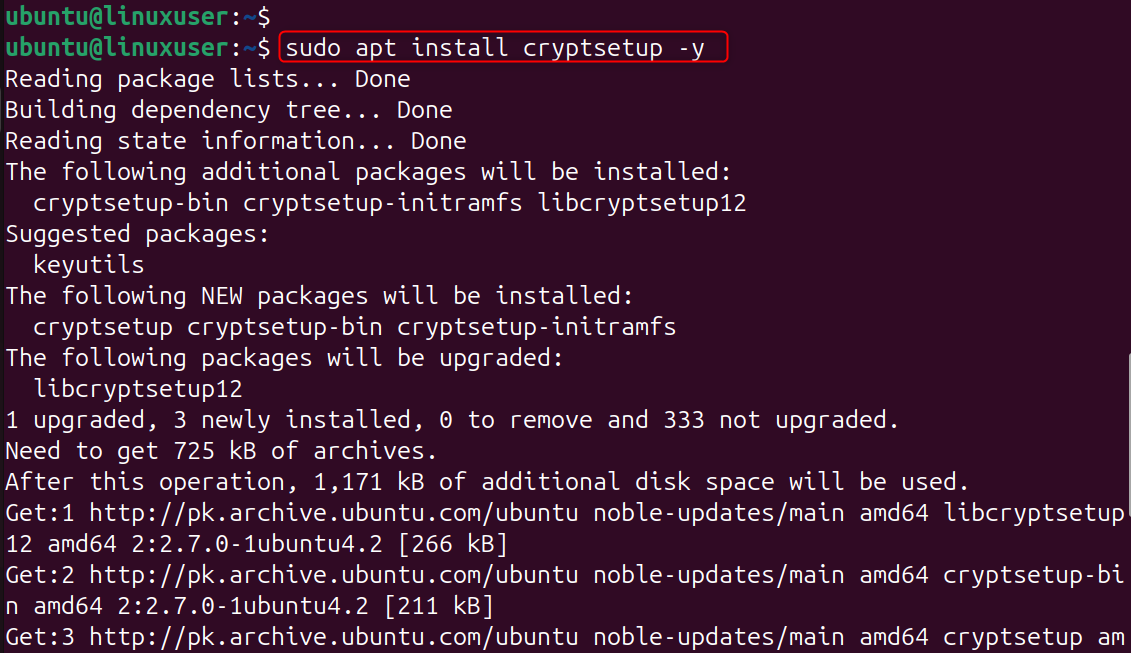
Cryptsetup uses the command line to create, manage, and open LUKS-encrypted devices. Ubuntu comes with it, but you can install the latest version to ensure that you are using the most recent version.
Step 2: Identify the Disk or Partition to Encrypt
List available storage devices:
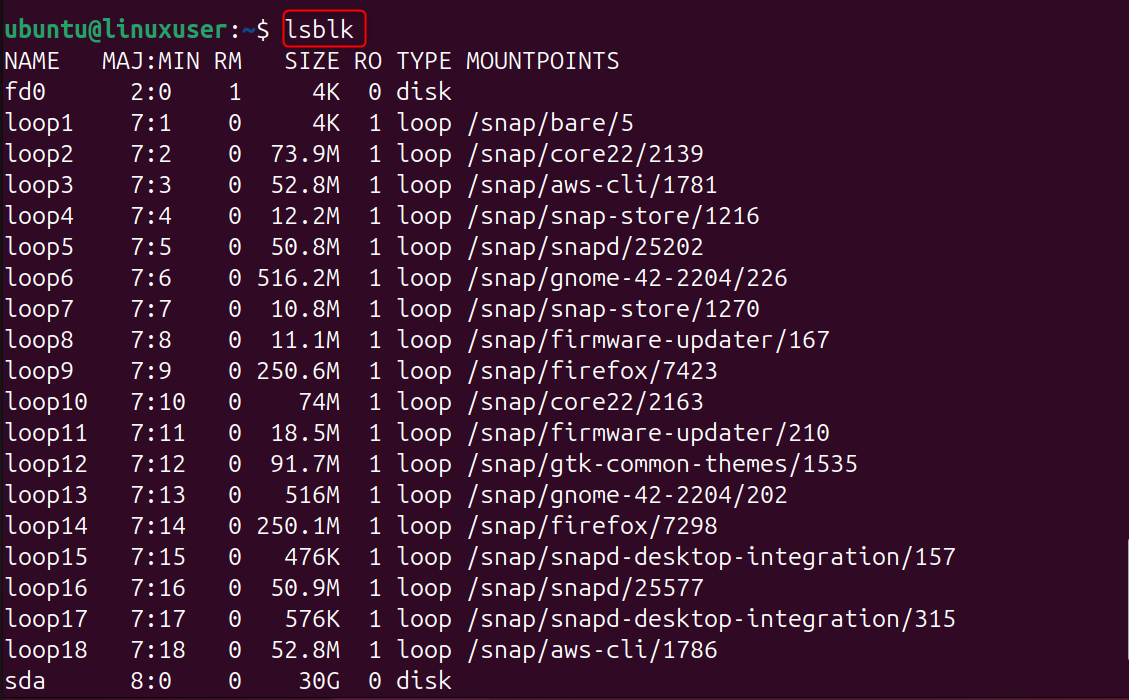
Common examples: /dev/sdb, /dev/vdb, etc.
It is important to identify the correct block device. Double-check that you are not encrypting the incorrect disk.
Step 3: Create a LUKS Partition (Data Will Be Wiped!)
Begin encryption:
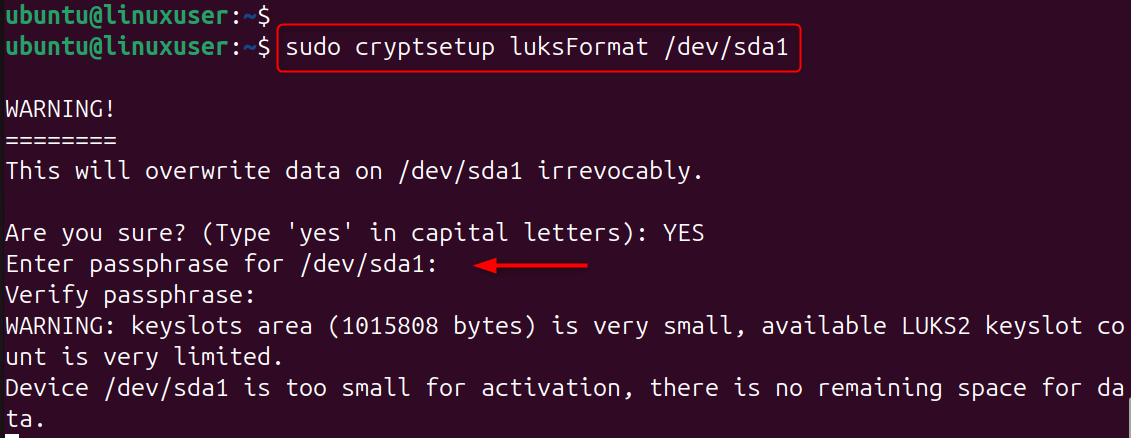
You will be asked to enter a passphrase.
This command formats the device using secure encryption and initializes it with LUKS metadata. The drive will be permanently erased.
Step 4: Open the Encrypted Device
Map the encrypted disc to a name.

This unlocks the encrypted device and creates a mapped device at /dev/mapper/securedata, which behaves like a normal block device once decrypted.
Step 5: Create a Filesystem Inside the Encrypted Volume
Format it using ext4 or any other FS that you prefer:

The encrypted LUKS Container is just a wrapper. To store files, you still need to create an actual filesystem.
Step 6: Mount the Encrypted Storage
Create a mount directory:

The encrypted volume will behave like any other directory, except that all data is encrypted while it's in the volume.
Step 7: Auto-Mount with Passphrase on Boot (Optional)
Open /etc/crypttab:
Add:
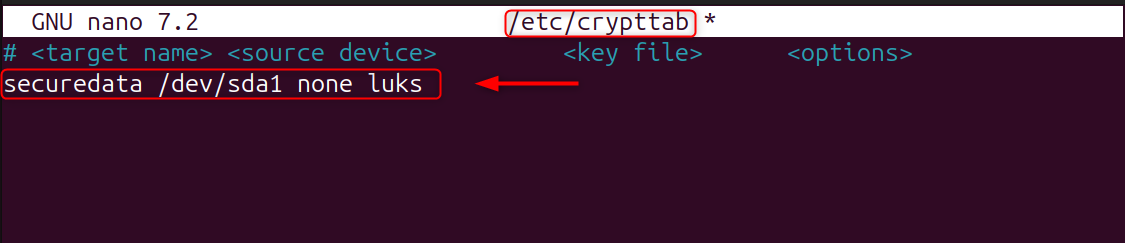
Then update /etc/fstab:
Add:
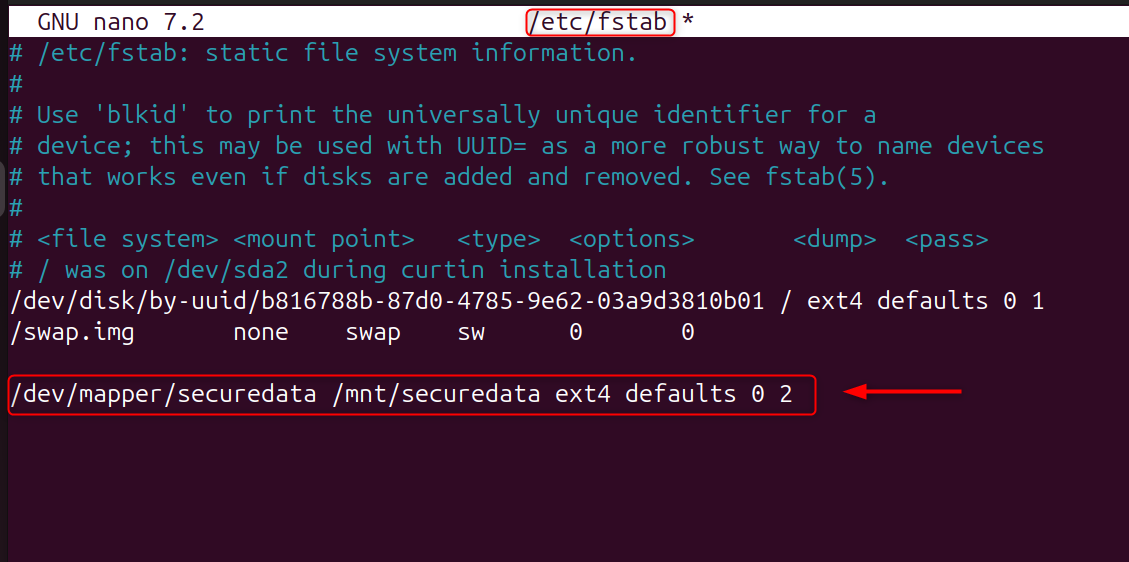
Enter your passphrase to manually unlock the volume at boot. VPS users typically use this feature for interactive, secure mounts.
Step 8: Close the Encrypted Volume (When Needed)
Unmount and close the container:

The device is locked, and its contents are inaccessible until a new passphrase has been entered.
How to Manage LUKS Keys on Ubuntu 24.04 VPS
Data protection at rest is a critical security measure for any server, but especially a cloud virtual private server, where an unauthorized hypervisor or unauthorised access could compromise vital files. LUKS is the standard Linux disk encryption. It provides military-grade security for block devices like partitions, virtual drives, and dedicated data volumes.
Let’s add a new passphrase:

Let’s remove a passphrase:

LUKS can support up to eight slots for keys, allowing several administrators or backup recovery keys to unlock the disk.
The step-by-step setup ensures that your data is unreadable without authentication, whether you are securing backups, logs, or personal files.
Conclusion
Encrypting your data in transit on your Ubuntu VPS 24.04 with LUKS can be a very effective way to protect sensitive information against unauthorized access, disk-level compromise, and cloud-level hacking. LUKS offers enterprise-grade security while minimizing performance impact. It does this by using AES encryption and secure passphrase management. Your VPS is much harder to compromise with encrypted volumes, controlled mounts, and the ability to automate secure boot processes. This applies even if an attacker gains access to the raw disk.
Consider AlphaVPS if you are looking for High-Performance VPS for your new upcoming project and we will provide you the tailored solution.
