Logs accumulate quickly on a Linux VPS, and without proper management, you may end up running out of storage. Large log files can take up disk space, slow down your server and make troubleshooting difficult. If critical logs are lost in huge files, you may have to spend extra time searching for valuable information, which can slow incident response and uptime.
Proper log management is key to keeping a VPS running smoothly. Regularly rotating and compressing your logs will help you avoid a storage complication and ensure a readable log. This also keeps everything organized and prevents performance issues with giant log files.
Logrotate is a built-in Linux utility that automatically manages your server logs. It will rename, compress, and delete old logs based on specific rules you define. In this article you will see how to set up log rotation on a Linux VPS with logrotate, write your own custom rules, test your rules, and troubleshoot common issues.
What is Log Rotation?
Log rotation is an important process if you want to keep a Linux VPS healthy and prevent issues with disk space. Overgrown log files can slow down the servers and make troubleshooting harder. Rotating, compressing, and deleting old logs makes sure the system remains clean and organized, while maintaining efficiency. Logrotate is the built-in utility for Linux systems that can automate this process for you; it can save you time and ensure all logs remain consistent.
In this article, we've installed logrotate (if it did not exist already), reviewed the default configuration file, and finally made a custom configuration for an application log. Finally, we validated the installation using a dry run and forced rotation to test that it is functioning properly. At this point, log rotation is made easy, and your VPS is set up for successful log management.
What is logrotate?
Logrotate is a tool found on Linux systems that facilitates the automatic rotation of logs. Instead of having to manually rename or clear logs, logrotate is able to rotate logs based on a configuration rule that states how frequently the logs should be rotated. Logrotate can compress old logs, keep a certain number of backups, and remove files that are outside of a retention policy.
Logrotate works with system logs and application logs, which is useful for centralized log management. Each service can have its own configuration in /etc/logrotate.d/, which allows for fine granularity in how frequently logs are rotated and how they should be managed with respect to compression and preservation.
Installing logrotate (If Not Installed)
Most Linux distributions include logrotate by default, but you can install it manually if needed. On Ubuntu or Debian, run:

For CentOS or RedHat, use:
After installation, confirm it is available by checking the version:
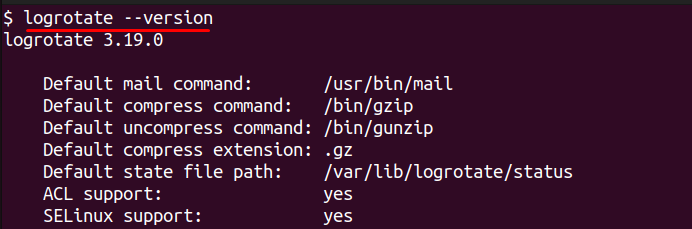
For this article, we will use an Ubuntu VPS to demonstrate all commands, but the steps are similar on other distributions that use a Linux package manager.
Understanding Default logrotate Configuration
Logrotate works by using a global configuration file and service-specific rules. The main file is located at /etc/logrotate.conf, which sets defaults for rotation frequency, number of rotated files to keep, and compression behavior. These defaults apply to all logs unless you override them.
To view this file, run:
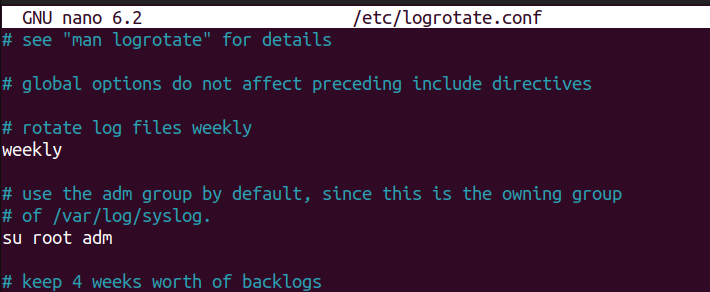
Inside, you will see directives such as weekly, rotate 4, and create. These tell logrotate to rotate logs weekly, keep four old copies, and create a new log file after rotation.
Service-specific rules are stored in /etc/logrotate.d/. To list them, run:

This will display configuration files for services like nginx, apache2, and mysql. Each file contains log paths and directives that control how those logs are handled. Reviewing these files helps you understand the rotation behavior for each service before creating custom rules.
How to Create a Custom logrotate Configuration
If you want to manage logs for your own application or change the default behavior for a service, you can create a custom configuration file. Logrotate reads all files inside /etc/logrotate.d/, so adding a new file here is the correct way to define rules.
First, create a new file:
Replace myapp with the name of your application. Inside the file, add the path to your log file and define how it should rotate. Example:
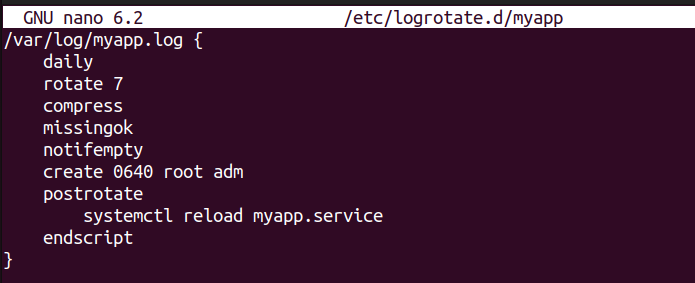
This example tells logrotate to rotate /var/log/myapp.log every day, keep seven older copies, and compress them to save disk space. If the log file is missing, logrotate will skip it without throwing errors.
It will also ignore empty logs to avoid creating unnecessary files. After each rotation, a new log file will be created with specific permissions and ownership, and the application service will reload to start writing to the fresh log file.
Test logrotate Configuration
After creating a custom configuration, it is important to test it before relying on automation. This helps you confirm that logrotate can read your file without errors and that it behaves as expected.
Run a dry-run test with the following command:
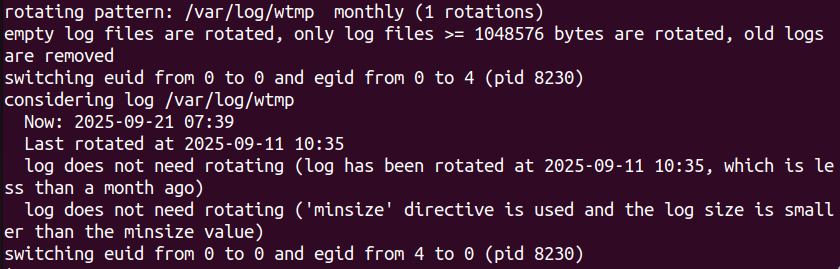
The -d flag runs logrotate in debug mode. It will show what actions it would take but will not actually rotate any logs. Carefully read the output to check for syntax errors or missing files.
If the configuration looks correct, you can force a rotation to see it in action:
$ sudo logrotate -f /etc/logrotate.conf
error: custom-logs:1 duplicate log entry for /var/log/alternatives.log
error: found error in file custom-logs, skipping
This command performs an actual rotation based on your settings. After it finishes, check the log directory to verify that a new file has been created and old logs have been rotated or compressed as defined in your configuration file.
Efficient log management depends on both configuration and the underlying infrastructure.
If you’re running critical workloads or monitoring-heavy environments, consider a High-Performance VPS from AlphaVPS.
With fast NVMe storage and reliable I/O throughput, it provides the ideal foundation for stable system logging and analytics on Linux.
Conclusion
Log rotation is an important process if you want to keep a Linux VPS healthy and prevent issues with disk space. Overgrown log files can slow down the servers and make troubleshooting harder. Rotating, compressing, and deleting old logs makes sure the system remains clean and organized, while maintaining efficiency. Logrotate is the built-in utility for Linux systems that can automate this process for you; it can save you time and ensure all logs remain consistent.
In this article, we've installed logrotate (if it did not exist already), reviewed the default configuration file, and finally made a custom configuration for an application log. Finally, we validated the installation using a dry run and forced rotation to test that it is functioning properly. At this point, log rotation is made easy, and your VPS is set up for successful log management.
