Open ports allow a VPS to communicate with other systems and services. Each port represents a gateway for different applications, such as SSH for remote management, or HTTP and HTTPS for web servers. While open ports are necessary for application access, they also present an opportunity for attackers to compromise a system. As such, open ports should be actively monitored as part of VPS security measures to ensure that they are functioning as expected and that the system is still stable, reachable, and protected.
This article will document the essential steps for assessing open ports with netstat and ss, why one tool may provide different information than another, and provide utilization examples to assess services. In the end, you will understand how to locate open ports, which services are being executed, and what needs to be done to secure your VPS.
Why Checking Open Ports on VPS is Important
Unused ports can impact a VPS in three ways:
- Security - More ports are unnecessary and have vulnerabilities multiplied the risk of attack, exploitation, or unauthorized access.
- Performance - Our services use CPU and RAM, so check your ports to avoid wasting time and resources.
- Compliance - Make sure that only the services you need are running, this helps configure the firewalls, harden the VPS, and to audit the services that are running.
To illustrate, SSH uses port 22 and web servers use ports 80 and 443. We not only want to use these ports, but we also do not want to expose other ports that we are not using.
Prerequisites
This guide applies to Debian- and Ubuntu-based VPS environments.
Before you begin, make sure you have:
- A VPS with SSH access and sudo privileges.
- Basic familiarity with running commands in the terminal.
- The following package installed (for netstat):
sudo apt updatetools
sudo apt install -y net-
Note: Thesscommand is included by default in most modern Linux distributions through theiproute2package.
Understanding Ports and Services
Ports can be in three states: open (accepting connections), closed (no service listening), and filtered (inaccessible - firewalls rules). Although not known to be intentional, understanding these states enables administrators to control access and shield critical services.
Common services and their standard ports include:
SSH → 22
HTTP → 80
HTTPS → 443
FTP → 21
MySQL → 3306
Ports effectively communicate in two ways: TCP provides connection-oriented communication that is reliable, and UDP communication is faster, connectionless (like DNS and streaming). Understanding the difference is essential to ensuring ports are configured correctly and services are working consistently (stability).
Introduction to netstat and ss
When monitoring open ports on a VPS, it's important to have some dependable tools to understand what services are running and how they connect to one another. The two primary commands that serve this purpose are netstat and ss.
What is netstat?
netstat is a traditional Linux tool and displays active TCP/UDP connections, listening ports, and routing tables. It is available on many VPS systems and is an effective tool to quickly glance and understand network activity, though it is slowly being pushed aside for modern alternatives.
What is ss?
ss is a speedy, and efficient replacement for netstat that will give the same information, but has less overhead when dealing with numerous connections. It can display quick socket statistics, filter results on the fly and is maintenance-free in a VPS environment.
Both provide ways for administrators to inspect listening ports, inspect connections, and maintain a VPS that is ,secure and efficient. It will come down to your server configuration and what detail of information you are after.
How to Check Open Ports with netstat
Monitoring open ports with netstat helps you see which services are running and identify potential security issues. It is a reliable tool for quick VPS checks, though newer alternatives like ss are faster.
Basic netstat Command
Before using netstat, ensure the net-tools package is installed on your VPS, as many modern distributions don’t include it by default. You can install it with:

Once installed, you can list all listening TCP and UDP ports on your VPS with:
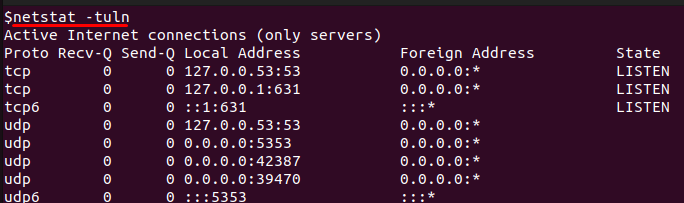
This command shows TCP and UDP ports that are actively listening. The -t and -u options filter the output to TCP and UDP connections, -l shows only listening ports, and -n displays numeric addresses instead of resolving hostnames, which speeds up the output.
Display Processes with Ports
To identify which processes are using specific ports, use:
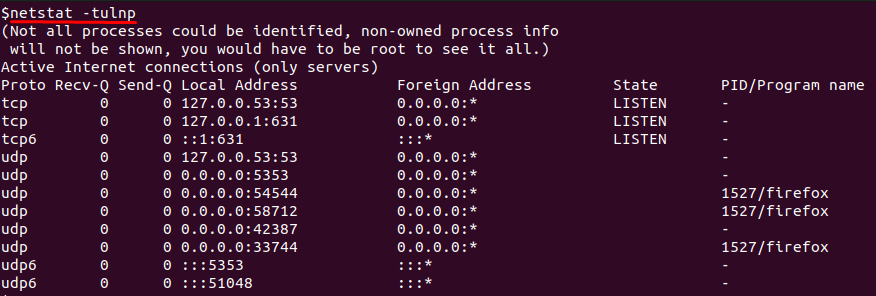
Adding the -p option displays the process ID and program name for each port. This helps link services to ports, allowing you to confirm that critical applications like MySQL or web servers are running on the expected ports and catch any unexpected services.
Limitations of netstat
While useful, netstat has some limitations. For example, on VPS instances with many active connections, it may perform slowly, and it is being slowly replaced by ss, which provides a faster experience and more detailed information.
Despite its limitations, if you need to find listening ports, monitor processes, or just quickly get a sense of activity on your VPS, netstat is still useful.
How to Check Open Ports with ss
The ss command is a modern and faster version of netstat for Linux systems with many connections. The ss command displays detailed information about sockets, listening ports, and established connections, making it ideal for monitoring and troubleshooting any issues on a VPS machine.
Basic ss Command
To view all listening TCP and UDP ports on your VPS, run:

This command gives us a list of the TCP and UDP ports that are currently listening. The -t and -u options will filter for TCP and UDP connections respectively; the -l option will only show listening ports and finally, the -n option will show the numeric addresses and not resolve hostnames. This provides a clear, fast view of our active services.
Display Associated Processes
To identify which processes are using each port, use:
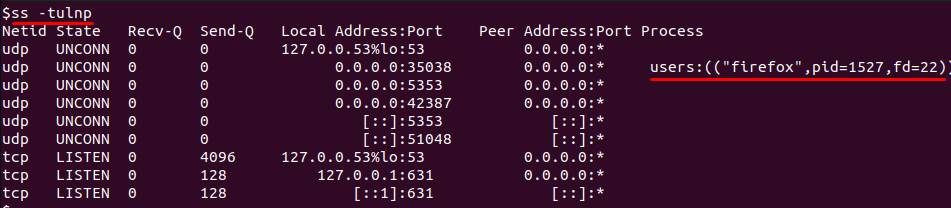
If you're interested in process information, you can include the -p option which provides PID and program name information. This lets system administrators relate ports to service management. Hence, ensuring that desired applications are running as expected as well as determining other prior unintentional or unauthorized process implementations.
Check Established Connections
You can also review active connections on your VPS. The command:
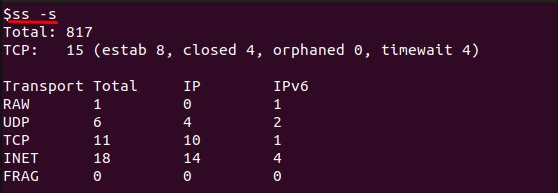
provides a summary of all socket statistics, while:
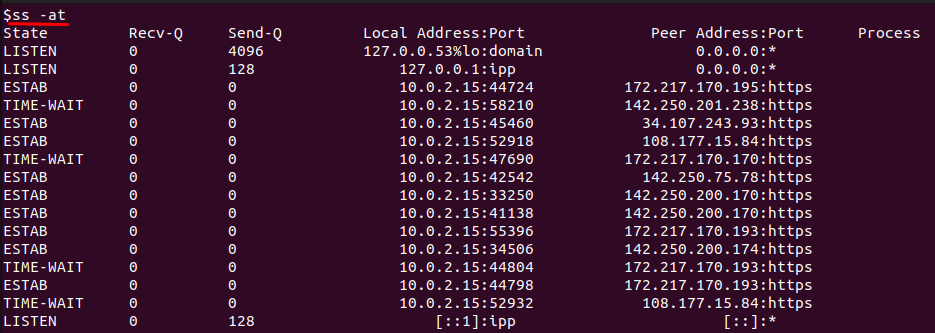
lists all established TCP connections in detail. These commands are helpful for troubleshooting connectivity issues and monitoring traffic patterns in real time.
Comparing netstat vs ss
Netstat and ss are both important tools for checking open ports and connection status on a VPS. However, there are some important differences as they apply to server environments.
Performance
Netstat is not nearly as fast or efficient as ss, but this is more visible on servers that are under load or have considerable amounts of active connections. Ss manages socket information better, without considerably slowing the load time, whereas netstat often stalls while parsing long connection lists.
Detail and Filtering
Netstat does provide necessary port and connection status information, while ss provides better filtering options in addition to socket statistics. This allows an administrator to quickly isolate ports, protocols, or processes in use and eliminates wrongfully identified items, which is valuable when troubleshooting.
Compatibility
Although netstat is widely available and mostly familiar to many administrators, ss is standard on modern distributions of Linux. Additionally, ss would be a preferred tool for existing environments where performance or low-volume is key (e.g., New VPS).
Practical Recommendation
For most quick checks on smaller VPSs, netstat is a satisfactory tool. But for larger instances or ones requiring more specific data on connections, ss will support those efforts better than netstat. Knowing about both utilities will help administrators select the one they need, given the instance speed, detail, and size.
Reliable and secure network performance starts with a stable VPS foundation.
At AlphaVPS, our High-Performance VPS and Ryzen VPS plans provide consistent, low-latency connectivity—ideal for running network services you monitor with netstat and ss.
If you need a reliable environment for hosting web servers, databases, or VPNs, our Dedicated Servers and Storage VPS options ensure secure, high-performance infrastructure with full control.
Conclusion
Tracking open ports is an essential activity for VPS security, resource control, and compliance. Open ports allow essential services such as SSH, web servers, and databases to communicate, but they can also represent entry points for attackers. Regular checks can help administrators ensure they only have services they need running, help administrators maximize resources, and minimize exposure.
By using commands like netstat, and ss, VPS administrators can quickly identify currently utilized connections, link ports to processes, and filter results for specific services. Netstat has a higher degree of familiarity and broader compatibility, but ss will be faster, allow for more advanced filtering, and have better performance on modern servers. Knowing both tools enables administrators to monitor and troubleshoot, as well as secure and harden their VPS environments.
