As a VPS admin, you often perform many of the same tasks frequently - updating applications, purging logs, performing backups, monitoring performance, etc.. Manually keeping track of all those tasks becomes burdensome and many can be done incorrectly.
Automating these tasks allows all of the tasks to run at the right time without you thinking about it, maintaining a consistently stable and secure server. You also won't have to remember each little piece of maintenance and can devote your brainpower to developing or doing your job.
This article will review two of the most common Linux task schedulers - cron jobs and systemd timers. This article will describe how both cron jobs and systemd timers work, how to choose one over the other, and how to use both to form a solid VPS automation process.
Why Automate VPS Tasks?
Automating any server-related task increases both efficiency and reliability, no matter if you are a developer, sysadmin, or small business owner with a VPS. After you've configured the automation, it'll run like clockwork, never missing another job deadline again.
Routine updates, log cleanups, and backups will all get done with zero chances for human error or just plain forgetting. And it mitigates downtime for us and it enables us to utilize server capabilities more broadly and efficiently, improving performance.
If your automation strategy depends on stability and uptime, it’s essential to host on a VPS that won’t slow you down or fail during critical maintenance windows. At AlphaVPS, our high-performance VPS plans are built for reliability — featuring fast NVMe storage, powerful AMD EPYC processors, and a resilient network backbone. Whether you’re scheduling nightly backups or running complex automation through systemd timers, your workloads will stay consistent, predictable, and fast.
An automated VPS will work for you, leaving you to not think about your infrastructure running without interruptions, and start focusing on scaling and growing your business, as opposed to maintaining it manually.
Overview of Task Scheduling in Linux
Linux has a native scheduling system and automatic task execution tool set that allows you to command a VPS easily. You can set up scripts, commands, and services to run at specific times with no requirement for human supervision.
The two most common schedulers are cron and systemd timers. Cron has been tradition for decades (literally decades) since it has been responsible for everything including backups, and cleanup jobs, based on simple time-based commands. Systemd timers integrate into the system's init process, and have features like logging, dependency management, and better recovery, if an action was missed due to the server being offline when it was due.
Essentially, learning how these tools work is the first step in creating a dependable automation strategy on your server, and will allow you to assess and compile a proper method of addressing the needs of each task.
Understanding Cron Job
Cron is the classic Linux task scheduler, trusted for decades to run commands at fixed times. It uses a simple table called the crontab to define when and what to execute. Each entry in the crontab contains five time fields — minute, hour, day, month, and day of the week — followed by the command to run.
How to Set Up and Run a Cron Job
To make a cron job work, you first need to edit the crontab file where jobs are stored. Each user on a Linux system has their own crontab, and there’s also a system-wide version for global tasks. Here’s how to create or edit your personal crontab:
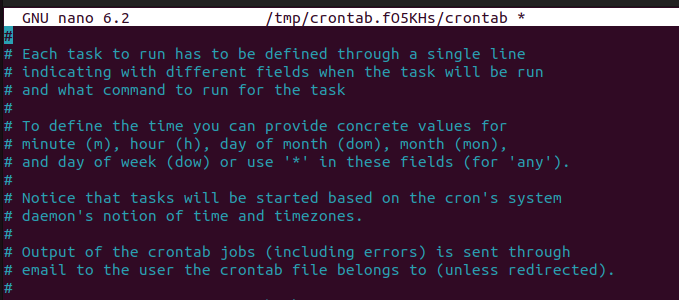
This command opens the crontab file in your default text editor (often nano or vi). You can add one job per line, following the format:
After adding your job, save and close the file. Cron will automatically reload and start running your new schedule. To verify that the job has been added, run:
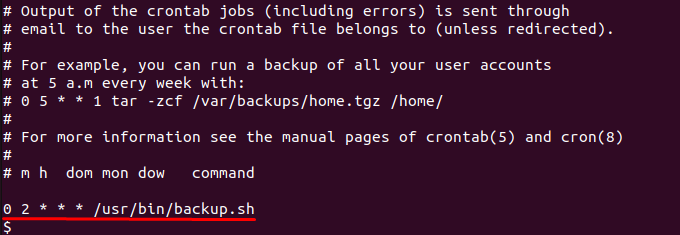
This displays all active cron jobs for the current user.
Practical Examples of Cron Tab
Nightly Backup Job
Here’s a practical example that creates an automated backup every night at 2 AM:
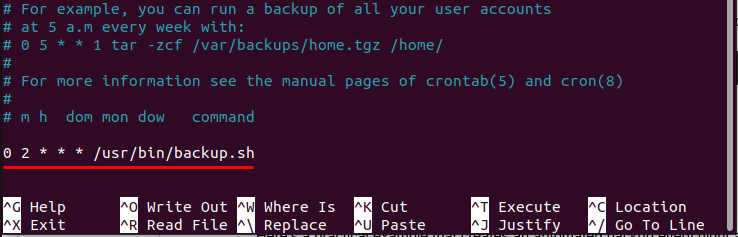
In this schedule, the first number represents the minute, so the job runs at the start of the hour. The second number specifies the hour, which in this case is 2 AM. The three asterisks that follow tell cron to run the job every day, every month, and every day of the week. Finally, the last part is the path to the script that will be executed.
To make sure this job works correctly, first confirm that the script exists at /usr/bin/backup.sh. Then make it executable by running:
After that, test it manually by running:
If the script runs as expected, save it in your crontab, and cron will execute it every night at 2 AM without any further input.
Weekly Log Cleanup
Cron can also help prevent disk space issues by deleting old log files once a week. The following job clears .log files every Sunday at midnight:
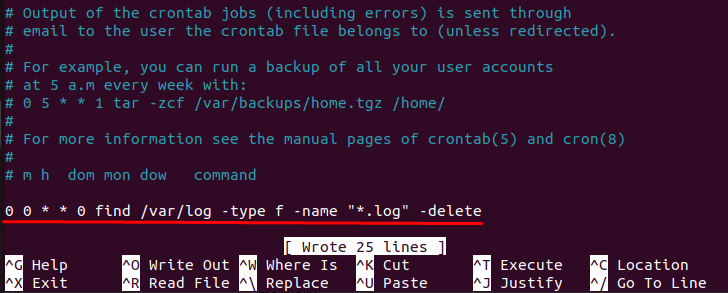
Here, the zeros at the start mean the job runs at 00:00 hours, and the final zero means Sunday. The command uses find to search for all .log files in /var/log and deletes them. Running this automatically ensures your VPS stays clean without you having to remember to clear logs manually.
Introduction to systemd Timers
Systemd timers are a new form of scheduling on Linux servers. Timers differ from cron jobs in that they are built into systemd, the service manager which controls how processes start, stop and restart on your VPS. Timers have added capabilities as they can be useful for tasks that require logging, dependencies, or guaranteed execution after a reboot.
To create a systemd timer, you will usually need two files: a .service file that defines what to run, and a .timer file that defines when to run it. Both files should be placed in /etc/systemd/system/. After creating the files you have to reload systemd so that it recognises the files, you will enable the timer so it can run after reboots and start the timer.
Example: Daily Backup with systemd Timer
Let’s set up a job that runs /usr/bin/backup.sh every night at 2 AM.
Step 1: Create the Service File
Run this command to open a blank file using nano (you can also use vim if you prefer):
This opens a new file in the editor. Copy and paste the following content into it:
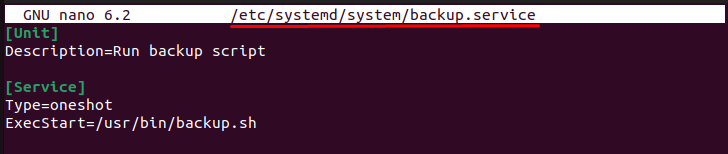
The [Unit] section provides a short description, and the [Service] section tells systemd to run your backup script as a one-time action. After pasting, press CTRL+O to save and CTRL+X to exit nano.
Step 2: Create the Timer File
Now create the timer file:
Paste this content inside:
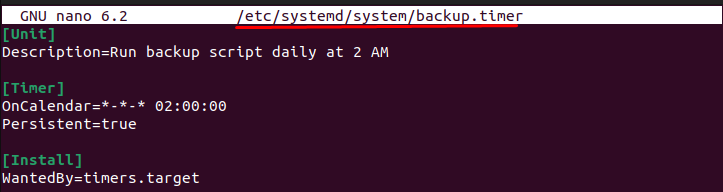
This file tells systemd to run the service every day at 2 AM. The Persistent=true line ensures that if the system is off at the scheduled time, the job runs as soon as the system comes back online. Save and exit the file just like before.
Step 3: Reload and Start the Timer
Now reload systemd so it knows about your new files:
Enable the timer so it runs automatically after every reboot and start it right away:
You can check that the timer is active and see when it will run next with:
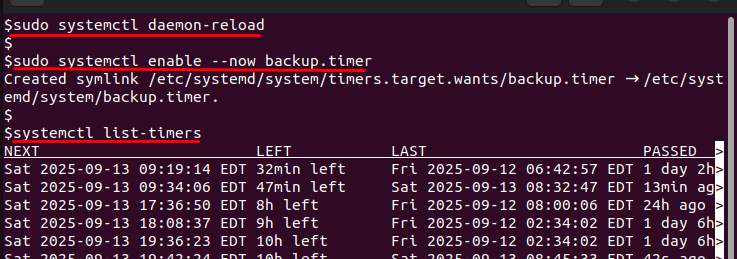
To confirm the backup ran successfully or troubleshoot issues, check its logs:
Your backup script will now run every night at 2 AM automatically, without any manual action.
Using Timers for Different Schedules
Systemd timers provide a useful option called OnCalendar= for setting when the task should run. You can pretty much set this to whatever schedule you would like. For example, OnCalendar=daily runs once a day, midnight, OnCalendar=weekly runs once a week, Monday at midnight, and OnCalendar=hourly runs once every hour. Or you could set times like OnCalendar=Mon *-*-* 03:00:00 (every Monday at 3 AM) or ranges, OnCalendar=*:0/15 (every 15 minutes).
This means you can schedule backups, log cleanup, updates, or your own scripts to run at the right time. Once you have created the service and timer files, the steps above for reloading, enabling, and starting the timer will be the same.
Cron Jobs vs Systemd Timers: Quick Comparison
Cron is small and simple and a great fit for things like backups, log rotation, or similar tasks that are run on a fixed schedule, as it is easy to configure and runs on nearly every Linux system with little or no configuration.
Systemd timers are more complex and work with the system's service manager, and can even log the output and handle dependencies, and it can also run missed jobs on reboot, making them great for complex jobs or jobs that you do not want to miss.
A good rule of thumb would be: Use cron for basic jobs that only need to run on time, and use systemd timers if you need reliability, logging, or conditions such as running only if the network is online.
Conclusion
Automating tasks on your VPS can save time, minimize human error and keep your server maintained without you needing to check on it constantly. You can automate your backups, clean up logs, perform updates, and carry out other necessary server maintenance tasks easily and automatically. Cron jobs and systemd timers enable your scheduled tasks to happen consistently and reliably.
In many ways cron jobs are better suited to basic recurring jobs and systemd timers provide more control, logging and structure around missed runs and dependencies. When you consider these differences you can reliably guarantee consistency when performing maintenance on your VPS.
Start small by automating one or two important tasks, then build automation into your VPS until it becomes a self-maintaining system which will let you focus that time on real project development and growth.
